iCloud Private Relay is an internet privacy service included with an iCloud+ subscription designed to protect web browsing privacy in Safari. In standard web browsing, a user’s network provider and visited websites can observe browsing metadata such as DNS records and IP addresses, which can be used to determine identity and build a profile of location and browsing history over time. Apple designed iCloud Private Relay to ensure that when browsing in Safari, no single party—not even Apple—can see both who a user is and what sites they visit.
Dual-Hop Architecture: How Safari Routes Requests
When iCloud Private Relay is enabled, Safari web requests travel through two separate, secure internet relays rather than connecting directly to the destination:
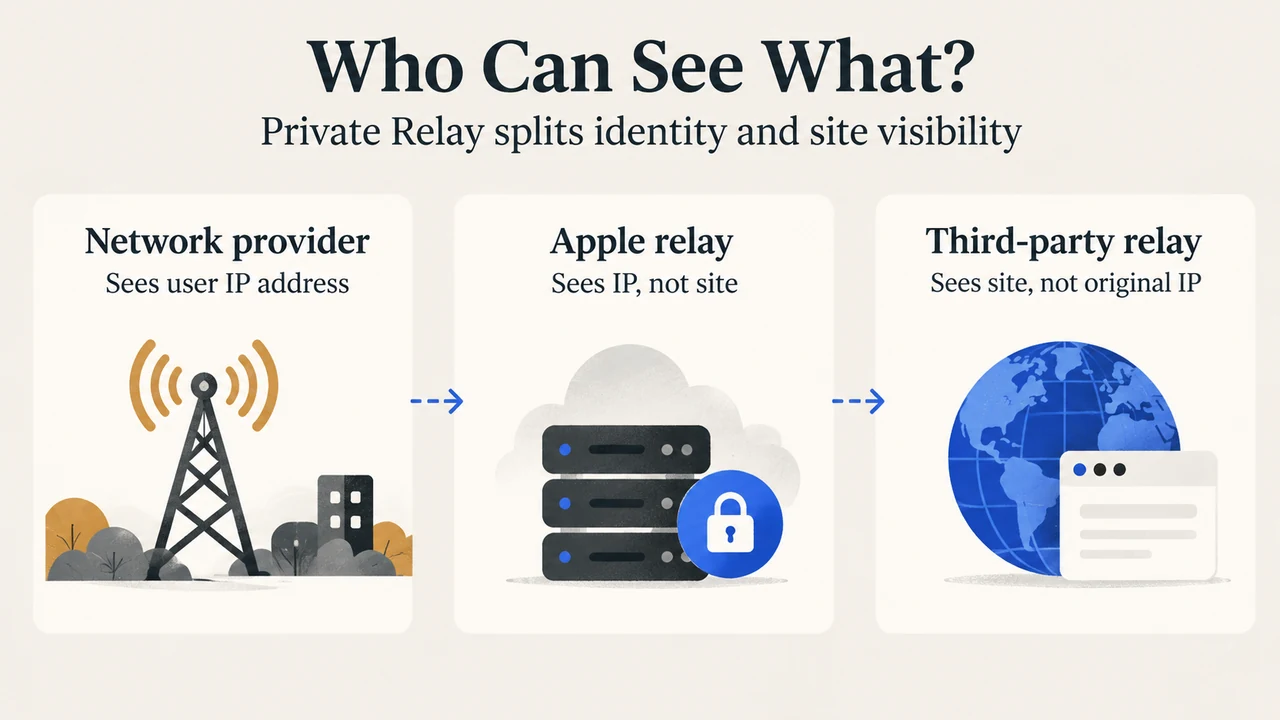
- First Relay (Apple): Your IP address is visible to your network provider and to the first relay, operated by Apple. Your DNS records are encrypted, so neither your network provider nor Apple can see the address of the website you are trying to visit.
- Second Relay (Third-Party Content Provider): Operated by a third-party content provider, this relay receives the request, generates a temporary IP address, decrypts the name of the requested website, and connects you to the destination site.
Because visibility is divided between these two separate relays, the party that sees your IP address cannot see the requested site address, and the party connecting you to the site cannot see your original IP address.
Impact on Network Speed Tests
Users testing their connection may see lower throughput numbers on benchmark tools when Private Relay is turned on. Private Relay uses a single, secure connection to maintain privacy and performance. Standard network speed test tools typically open several simultaneous connections to measure maximum throughput. Because Private Relay limits traffic to a single connection, speed test results may appear lower, but your actual browsing experience remains fast and private.
Managing Website and Network Compatibility Exceptions
Some websites, networks, or services require access to your IP address, traffic auditing, network-based filtering, or browsing history visibility. Apple provides specific settings to manage these scenarios:
Website Exceptions
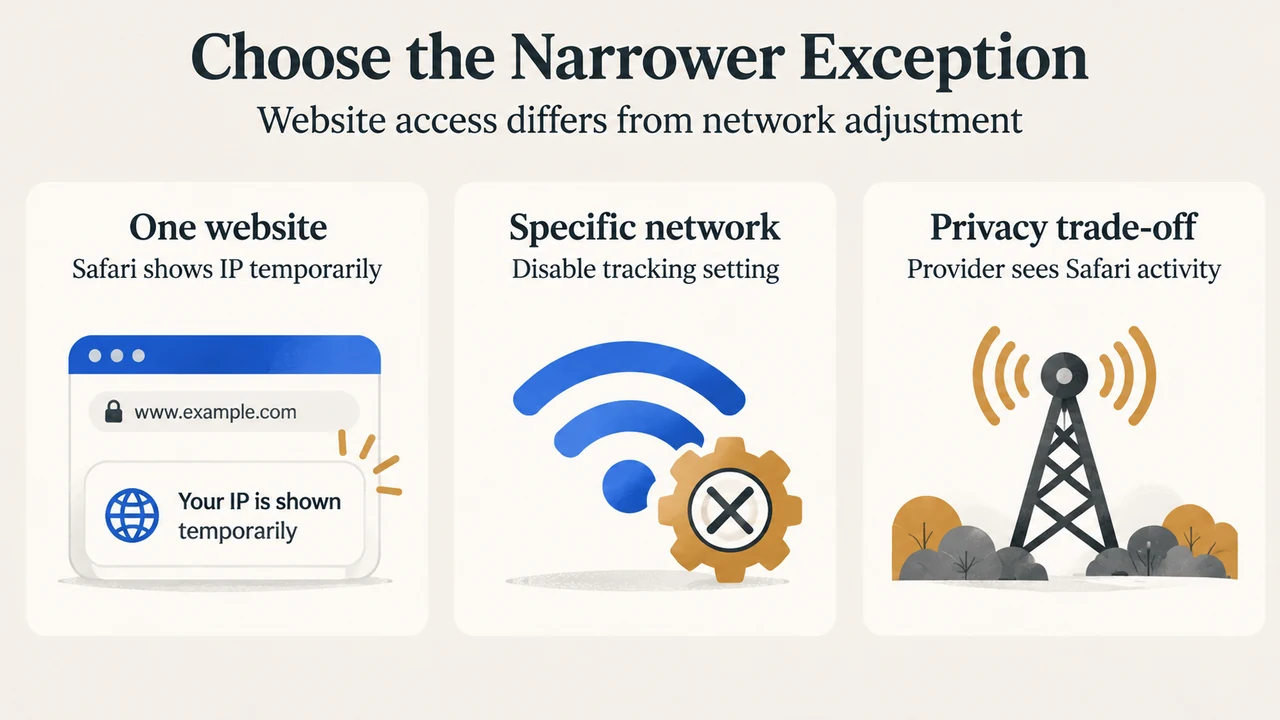
Websites relying on IP filtering, monitoring, or rate-limiting may prevent browsing while Private Relay is active or prompt for extra steps to sign in. Safari allows users to temporarily reveal their IP address for an individual site:
- iPhone or iPad: In Safari, tap the Page Menu button, then tap Show IP Address.
- Mac: In the Safari menu bar, choose View > Reload and Show IP Address.
If you turn off Private Relay for a specific website, your network provider will also be able to see which site you are browsing.
Network-Level Adjustments
Certain networks (such as business or school networks needing audit capability) and services (such as parental controls or zero-rated carrier plans) require disabling Private Relay on a specific connection. You can turn off Private Relay for an individual cellular or Wi-Fi network using the Limit IP Address Tracking setting (named iCloud Private Relay in earlier operating system versions):
- iPhone or iPad Wi-Fi: Open Settings > Wi-Fi, tap the More Info button next to the network, and toggle Limit IP Address Tracking.
- iPhone or iPad Cellular: Open Settings > Cellular, select your primary SIM (or tap Cellular Data Options in iOS 18 or earlier), and toggle Limit IP Address Tracking.
- Mac: In macOS Ventura or later, open Apple menu > System Settings > Network, click the active network service, click Details, and turn off Limit IP address tracking. In macOS Monterey, navigate to System Preferences > Network, select the network, and uncheck Limit IP Address Tracking.
Turning off Private Relay for a specific network applies to all devices where Private Relay is turned on, and configurations such as Dual SIM or separate Ethernet and Wi-Fi connections must be configured independently.
System Configuration Conflicts on Mac
If an alert in Mac System Settings displays “Some of your system settings prevent Private Relay from working,” an installed third-party application—such as a VPN or internet filtering software—may have installed incompatible settings, kernel extensions, or custom packet filter rules. To use Private Relay on the Mac, turn off or uninstall the conflicting third-party application.
Research Method and Limitations
This explainer was prepared strictly from the supplied public Apple Support documentation excerpts (articles 102602 and 102022). No competing third-party coverage, relay vendor partner agreements, or independent laboratory performance benchmarks were supplied in the evidence. Consequently, this review does not cover partner identity disclosures, protocol implementations beyond Apple’s documented single-connection design, or non-Safari application behavior.
Text version of the diagrams
- Who Can See What?: Network provider — Sees user IP address; Apple relay — Sees IP, not site; Third-party relay — Sees site, not original IP
- Choose the Narrower Exception: One website — Safari shows IP temporarily; Specific network — Disable tracking setting; Privacy trade-off — Provider sees Safari activity