Unwanted tracking alerts notify smartphone users when an unfamiliar Bluetooth tracking device is traveling with them without their knowledge. Developed through an industry specification by Apple and Google, this protection functions across mobile platforms. It allows iPhones to detect compatible Bluetooth location-tracking devices and Find My accessories, and allows Android devices to detect compatible tags such as Apple AirTags and Find Hub network accessories.
Understanding how detection operates, what operating system versions are required, and how to physically disable an unauthorized tracker ensures you can respond effectively while preserving personal safety.
Supported Platforms and Operating System Scope
Cross-platform detection requires specific operating system versions and settings to identify native and compatible third-party trackers:
- Android: Automated unknown tracker alerts and manual scanning are supported on devices running Android 6.0 and later, as documented in Google’s unknown tracker alerts guide. Automated alerts require system Location to be turned on. On Android 11 and later, manual scanning operates without requiring the system Location setting to be on. Android 10 and lower require both Location and Bluetooth for manual scans.
- iOS and iPadOS: According to Apple’s unwanted tracking documentation, general tracking notifications for Apple Find My accessories require iOS 14.5 or later (or iPadOS 14.5 or later). Detecting compatible cross-platform Bluetooth location-tracking devices requires iOS 17.5 or later (or iPadOS 17.5 or later). On iOS, Tracking Notifications must be turned on (via Settings > Notifications > Tracking Notifications > Allow Notifications), and Airplane Mode must be turned off to receive tracking notifications.
Core Detection Criteria: Movement and Separation
Automated alerts are not triggered merely by briefly passing someone with a tracker. The detection system relies on two critical conditions:
- Separation from the owner: The tracking tag must be separated from its owner or far away from the owner’s device.
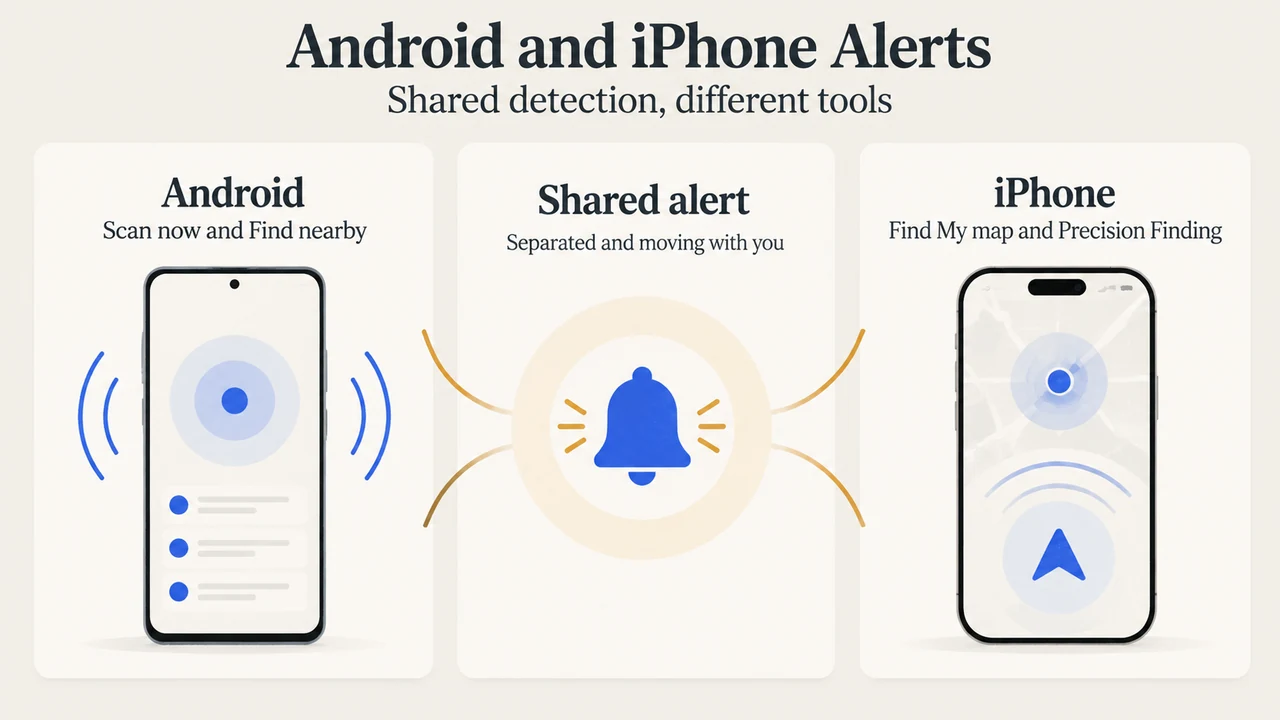
- Moving with you over time: Trackers use changing Bluetooth identifiers. If your device records an unknown tracker moving with you over time, it generates an alert.
On Android, the notification displays a route map where the tag was detected traveling with you. Android processes and temporarily stores this location data locally in encrypted format, deleting alert histories after 48 hours without sharing it with Google or other users. On iOS, the Find My app displays a map with red observation dots connected by dashed lines to indicate the sequence in which the item was detected near your device.
Alerts can also trigger if you borrow an item or travel alongside someone carrying a tracker. On iOS, if you borrow an AirTag or Find My network item from a Family Sharing group member, you can mute tracking notifications for that item for one day or indefinitely.
Locating an Unknown Tracker: Sounds and Proximity Finding
Once alerted, you can locate the physical tag using documented diagnostic steps:
- Sound Playback: In the alert interface (on Android via Play sound, or on iOS via Continue > Play Sound), you can prompt the tracker to emit an audible chime. Triggering this sound does not notify the tracker’s owner. Furthermore, on iOS, an AirTag that isn’t with its owner for a period of time emits a sound on its own when moved if the iPhone is awake.
- Why a sound might fail to play: Sound playback will not function if the tracker is near or within range of its owner, if it was separated very recently, if it is out of phone Bluetooth range or no longer with you, or if its Bluetooth identifier changed overnight.
- Close-range locating: On Android, you can tap Next steps > Find nearby with Find Hub network compatible trackers to view a visual indicator shape that fills as you get closer. On supported iPhone models with Ultra Wideband, you can tap Find Nearby to use Precision Finding when locating an unknown AirTag or AirPods Pro 3 charging case.
Manual Scanning vs. Automated Alerts
You do not have to wait for an automated alert to check your immediate surroundings for separated trackers:
- Android Manual Scan: Navigate to Settings > Safety & emergency > Unknown tracker alerts > Scan now. The scan takes about 10 seconds. It lists trackers currently near you that are separated from their owners. Trackers found in a manual scan might simply be misplaced or temporarily separated.
- Android Tracker Detect App: Users can also download Apple’s Tracker Detect app from the Google Play Store to scan for nearby separated item trackers compatible with Apple’s Find My network within Bluetooth range.
- iOS Identify Found Item: In Apple’s Find My app under the Items tab, tapping Identify Found Item helps you learn more about a separated AirTag, set of AirPods, Find My accessory, or compatible Bluetooth tracking device. You can also view recent alerts under Unknown Items Detected with You.
Physical Disabling and Identification
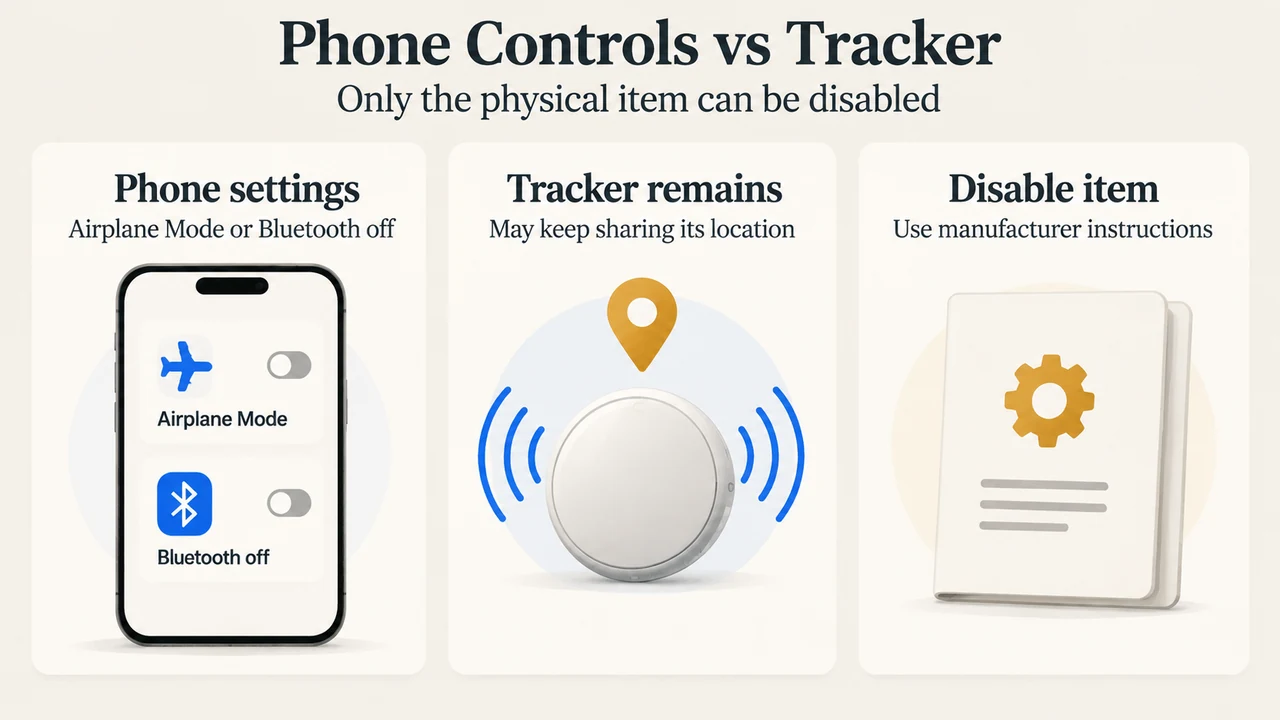
A critical safety limitation documented by both Apple and Google is that toggling Airplane Mode, turning off Bluetooth, or disabling Location Services on your smartphone does not stop the tracker from sharing its location. The physical tag remains active and can continue relaying location updates through other devices on the network.
To safely identify and disable a found tracker:
- Read Device and Owner Data: For an AirTag, hold the top of an iPhone or NFC-capable smartphone near the white side of the AirTag until a notification opens a website showing its serial number and the last four digits of the owner’s phone number (or lost mode contact details). On Android, bringing an AirTag near the back side of the phone displays tracker details. For Find Hub network compatible trackers, follow the on-screen instructions on Android to view the device identifier and hidden owner email. Some trackers also have their serial number printed physically on the device.
- Document Evidence: Take screenshots of the alert, the map of detected locations, and displayed serial or identifier information for reference.
- Physically Disable the Tracker: Follow the manufacturer’s specific instructions to turn off the tracker. Once disabled, the owner can no longer receive location updates, and unwanted tracking alerts for that item will cease. Apple notes that disabling instructions for compatible third-party Bluetooth tracking devices come from their respective finder networks and are not certified by Apple.
- Safety Escalation: If you feel your safety is at risk, both Apple and Google advise going to a safe public location and contacting local law enforcement or a trusted contact. Law enforcement can work with the platform vendor to request information related to the item using the device and its serial number or identifier.
Text version of the diagrams
- Android and iPhone Alerts: Shared alert — Separated and moving with you; Android — Scan now and Find nearby; iPhone — Find My map and Precision Finding
- Phone Controls vs Tracker: Phone settings — Airplane Mode or Bluetooth off; Tracker remains — May keep sharing its location; Disable item — Use manufacturer instructions
Research Methodology and Material Limitations
This explainer was prepared strictly from the supplied public support documentation published by Google and Apple concerning unknown tracker alert interoperability. It does not reflect hands-on laboratory testing, RF measurements, or unverified hardware benchmarks. Material limitations include reliance on partial, truncated public support excerpts and the lack of accessible competing third-party coverage.