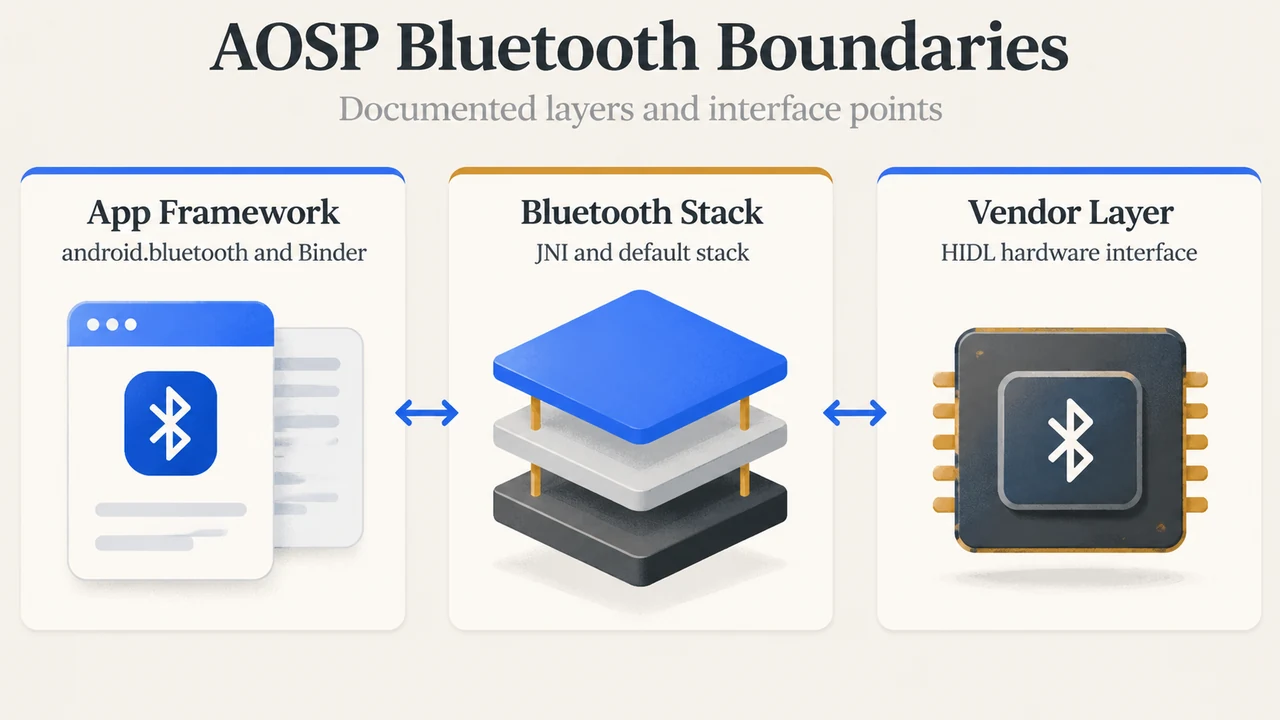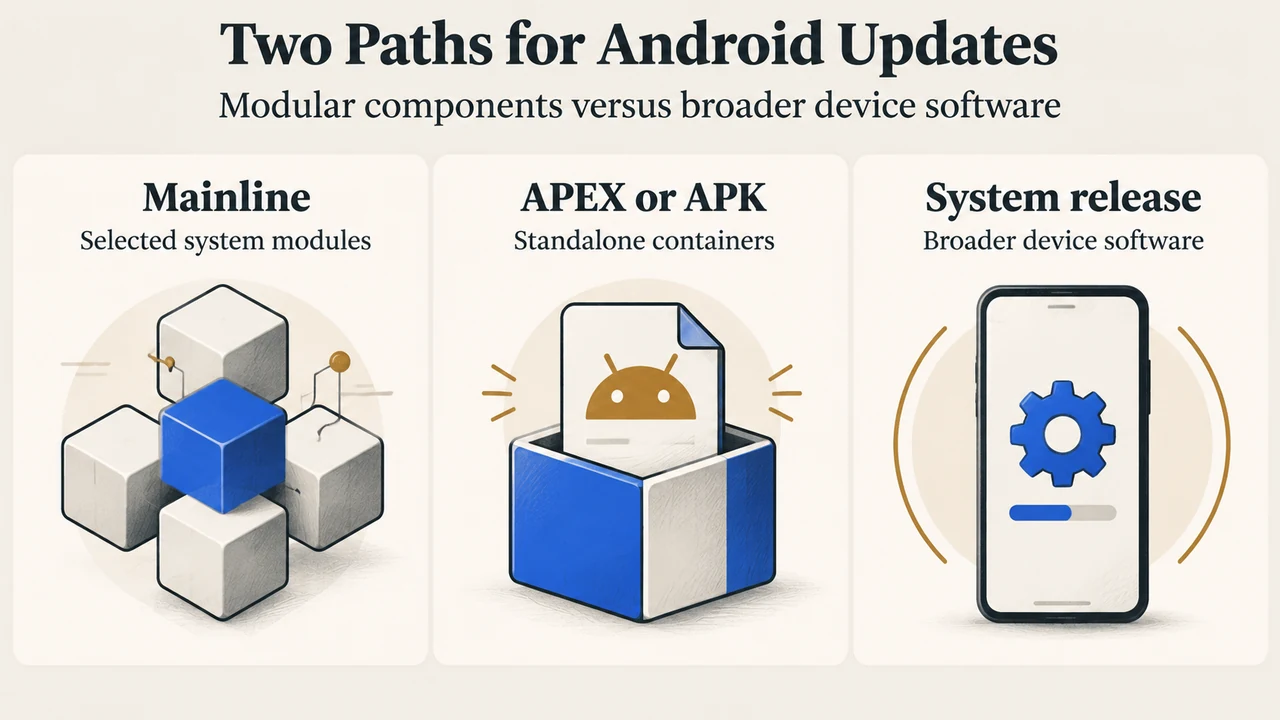
Android devices display distinct software indicators in their settings menus, including the Android version, Android security update, and Google Play system update. Understanding how modular updates work requires examining Project Mainline, the modular architecture introduced in Android 10 to update select system components outside the normal operating system release cycle.
What Are Mainline and Google Play System Updates?
According to official documentation on AOSP Modular System Components, Android 10 introduced Mainline (formerly called modular system components). Mainline modularizes selected Android system components so they can receive critical bug fixes and other improvements as needed without affecting lower-level vendor implementations or higher-level apps and services.
End-user devices can receive Mainline module updates through two documented distribution channels:
- The Google Play system update feature, which runs on Google Play Store infrastructure.
- A partner-provided over-the-air (OTA) mechanism provided by Android partners.
Modular Packaging: APEX and APK Formats
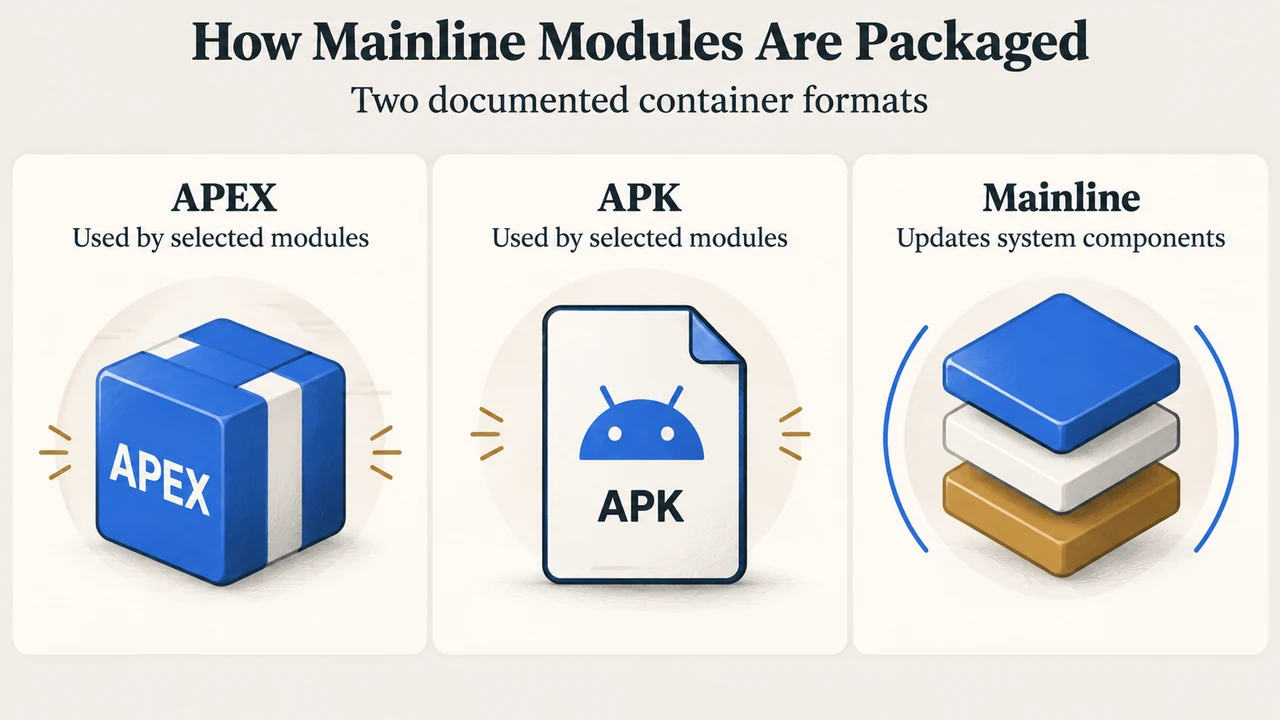
Mainline converts selected system components into standalone modules packaged in either the APEX container format (introduced in Android 10) or the standard APK format. Updated Mainline modules can be packaged together and pushed to devices by Google or by Android partners.
Under AOSP’s documented architectural constraints:
- Module updates do not introduce new APIs.
- Modules use only the SDK and System APIs guaranteed by the Compatibility Test Suite (CTS).
- Modules communicate only with each other and use only stable C API or stable AIDL (Android Interface Definition Language) interfaces.
- A module package installs and rolls back atomically: either all modules that need to be updated are updated, or none are updated.
Documented Mainline Modules Across Android Releases
The AOSP documentation lists modules introduced across Android versions, packaged as APEX or APK containers:
| Module Name | Package Identifier | Container Type | Release Introduced |
|---|---|---|---|
| Conscrypt | com.android.conscrypt | APEX | Android 10 |
| DNS Resolver | com.android.resolv | APEX | Android 10 |
| DocumentsUI | com.android.documentsui | APK | Android 10 |
| PermissionController | com.android.permissioncontroller | APK | Android 10 |
| adbd | com.android.adbd | APEX | Android 11 |
| CellBroadcast | com.android.cellbroadcast | APEX | Android 11 |
| Wi-Fi | com.android.wifi | APEX | Android 11 |
| ART | com.android.art | APEX | Android 12 |
| Bluetooth | com.google.android.bt | APEX | Android 13 |
| UWB | com.android.uwb | APEX | Android 13 |
| Android Health | com.google.android.healthfitness | APEX | Android 14 |
| Remote Key Provisioning | com.android.rkpd | APEX | Android 14 |
Documented Differences in Delivery and Update Behavior
Google support and AOSP documentation describe distinct roles and behaviors for Mainline module updates compared to broader device software updates:
| Feature | Mainline / Google Play System Updates | Device Software & Security Updates |
|---|---|---|
| Delivery Channels | Google Play Store infrastructure or partner-provided OTA | Device notifications, Settings app download, or manufacturer/carrier channels |
| Packaging Format | APEX and APK modular containers | General system updates and security patches |
| Scope | Selected modular system components (e.g., ART, Wi-Fi, DNS Resolver) | Full Android version releases and security patches |
| API & Interface Rules | No new APIs; restricted to CTS-guaranteed APIs and stable C / AIDL interfaces | To get the latest security update, devices must have the latest available Android version |
| Installation & Activation | Installs and rolls back atomically across packaged modules | Pixel devices install in background and activate on restart; many other devices restart during installation |
Checking Update Status on an Android Device
As documented in the Google Android Help Center, users can check system update information within device settings:
- Open the device’s Settings app.
- Tap About phone or About tablet, then tap Android version (or open System > Software updates).
- Review the status fields for Android version, Android security update, and Google Play system update.
Before installing updates, Google recommends connecting to Wi-Fi and charging the device to at least 75%, as updates can be large and take time. If an update download does not finish, the device automatically tries again over the following days.
Text version of the diagrams
- Two Paths for Android Updates: Mainline — Selected system modules; APEX or APK — Standalone containers; System release — Broader device software
- How Mainline Modules Are Packaged: APEX — Used by selected modules; APK — Used by selected modules; Mainline — Updates system components
Research Method and Limitations
This answer was prepared strictly from the supplied public documentation excerpts from the Android Open Source Project (source.android.com) and Google Android Help (support.google.com). Competing editorial coverage and independent laboratory benchmarks were unavailable for comparison. Specific module availability and update timing vary across Android versions, device hardware, manufacturers, and mobile carriers, and the primary sources do not document internal OEM firmware partitioning structures, board-support packages, or kernel-level update mechanisms.