Desktop Chrome Performance Controls: Memory Saver vs Energy Saver
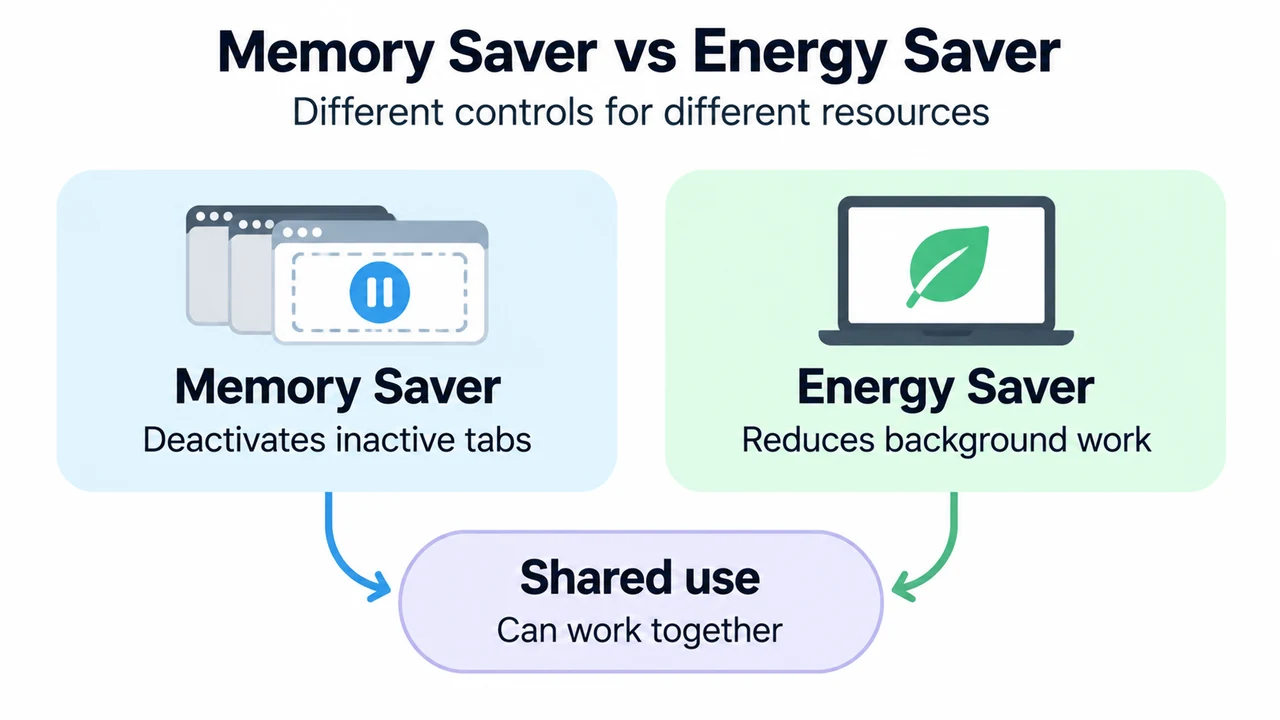
Google Chrome includes built-in performance settings on desktop computers to help manage system resources: Memory Saver and Energy Saver. Memory Saver saves computer memory by deactivating tabs you are not currently using, while Energy Saver extends battery life on portable computers by lowering image capture rates and reducing background tasks.
Performance settings cannot be personalized on mobile devices running iOS or Android.
At a Glance: Feature Comparison
The following table compares Memory Saver and Energy Saver based on Chrome Help documentation.
| Feature | Primary Objective | Trigger Conditions | Operating Mechanism | Documented Platform Availability |
|---|---|---|---|---|
| Memory Saver | Save computer memory and help active tabs run smoothly | Tabs remain inactive for a period determined by the chosen level (Moderate, Balanced, or Maximum) | Deactivates background tabs; automatically reloads them when accessed | Computers running Chrome (performance settings unavailable on iOS and Android) |
| Energy Saver | Extend device battery life | Device is unplugged or the battery is low (does not turn on when plugged in) | Reduces image capture rate, reduces other background tasks, and stops eligible CPU-intensive background tabs | Windows, Mac, and Chromebook devices with an internal battery installed |
How Memory Saver Works: Modes and Appearance
Memory Saver frees memory from inactive tabs so active tabs, such as gaming and video tabs, can run smoothly. When you navigate back to a deactivated tab, Chrome reloads it automatically.
Chrome provides three tab deactivation levels:
- Moderate: Moderate memory savings. Tabs become inactive after a longer period of time.
- Balanced (Recommended): Balanced memory savings. Tabs become inactive after an optimal period of time.
- Maximum: Maximum memory savings. Tabs become inactive after a shorter period of time.
You can also turn on visual indicators in Chrome settings:
- Inactive tabs appearance: Displays a ring around the tab icon in the tab strip when a tab is inactive.
- Show tab memory usage: Shows memory usage on tab hover preview cards (available across Windows, Mac, Linux, and Chromebook).
Activities and Settings That May Prevent Tab Deactivation
Certain settings and activities on your computer may prevent Chrome from deactivating a tab:
- Active audio or video (playback or calls)
- Screen share
- Page notifications
- Active downloads
- Partially filled forms
- Pinned tabs
- Connected devices (USB or Bluetooth)
You can also prevent specific sites from deactivating by adding them to the Always keep these sites active exclusion list in Chrome Settings. Exclusions support different URL patterns:
- Entire domains and subdomains: Exclude the URL scheme (for example,
google.commatches and protects subdomains likedrive.google.com). - Specific domains without subdomains: Add a dot before the host (for example,
.google.comprevents deactivation of that exact domain, but will not protect subdomains likewww.google.comordrive.google.com). - Specific subdirectories: Include the path (for example,
www.google.com/finance). - URL host and query wildcards: Wildcard asterisks (
*) can be used (for example,https://*oryoutube.com/watch?v=*). Wildcards for prefix, suffix, or substring matches of the URL host component (such as*oogle.comorgoogle.com/*) are not supported.
How Energy Saver Works: Battery Preservation
Energy Saver is available on Windows, Mac, and Chromebook devices that have a battery installed. It activates automatically when your device is unplugged or when your battery is low, and does not turn on while the device is plugged in.
When Energy Saver is active:
- Chrome lowers its image capture rate and reduces other background tasks.
- Chrome stops eligible CPU-intensive background tabs to reduce power consumption.
- Tabs that play audio or use video conferencing are not affected.
- You may notice changes in gaming and video performance.
If you need to resume background activities during an individual session, select Turn off now next to Energy Saver beside the address bar.
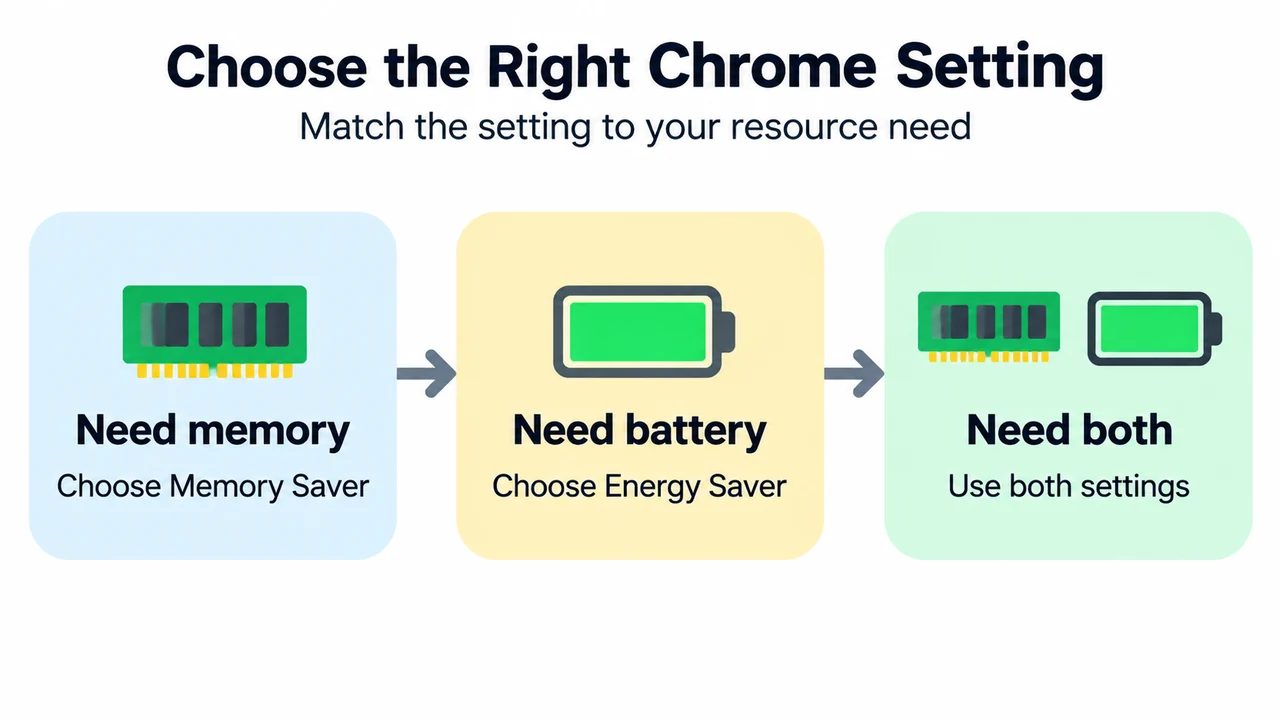
Which Setting Should You Use?
Because Memory Saver and Energy Saver manage different resources, you can use them individually or together depending on your needs:
- Turn on Memory Saver if you want to free up computer memory and keep your active tabs running smoothly.
- Turn on Energy Saver if you want to extend your device’s battery life when unplugged or low on power.
Text version of the diagrams
- Choose the Right Chrome Setting: Need memory — Choose Memory Saver; Need battery — Choose Energy Saver; Need both — Use both settings
- Memory Saver vs Energy Saver: Memory Saver — Deactivates inactive tabs; Energy Saver — Reduces background work; Shared use — Can work together