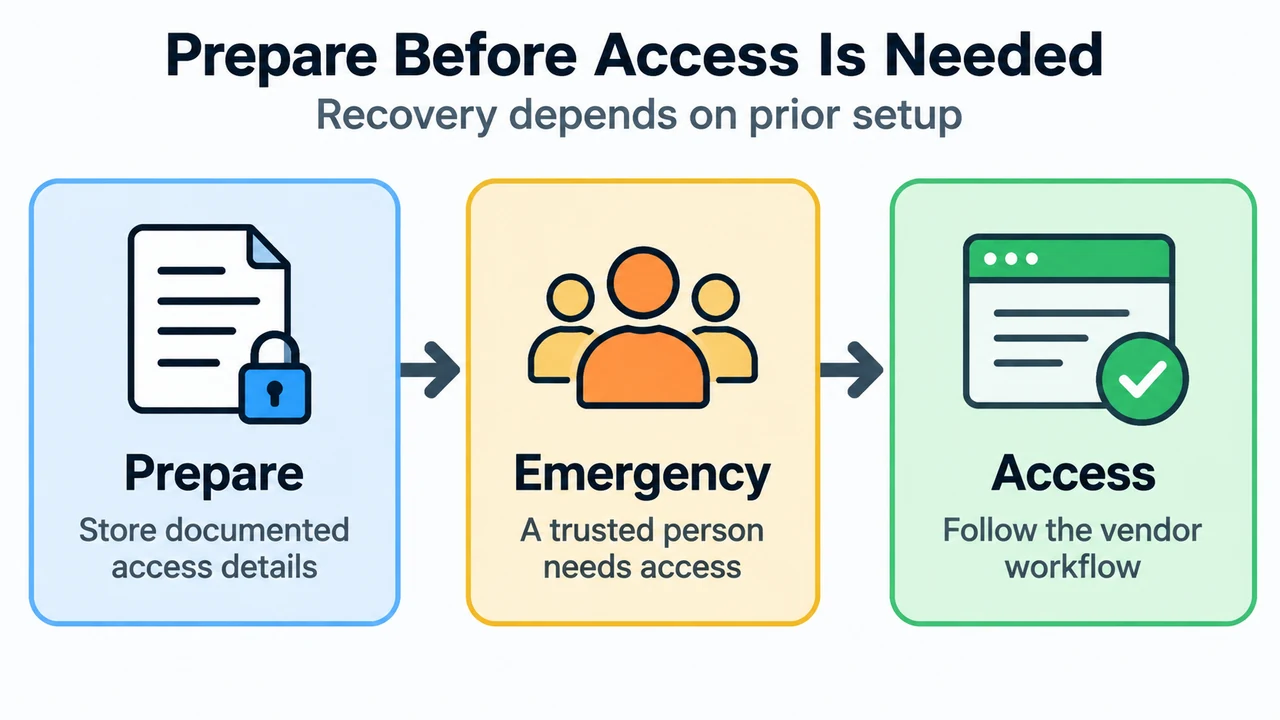
Planning for unexpected account lockout or emergency access requires understanding how recovery options operate before an emergency occurs. This guide compares the documented emergency access and account recovery mechanisms of 1Password and Bitwarden based strictly on their official documentation.
Research Method and Limitations
This comparison was prepared from the supplied public support documentation retrieved in September 2026 from 1Password Support and Bitwarden Help. Material limitations apply: no competing coverage or external sources were supplied or evaluated, and this analysis does not cover live vault performance, enterprise policy configurations beyond those explicitly cited, or hands-on account lockouts and penetration testing.
Overview: Documented Recovery Workflows
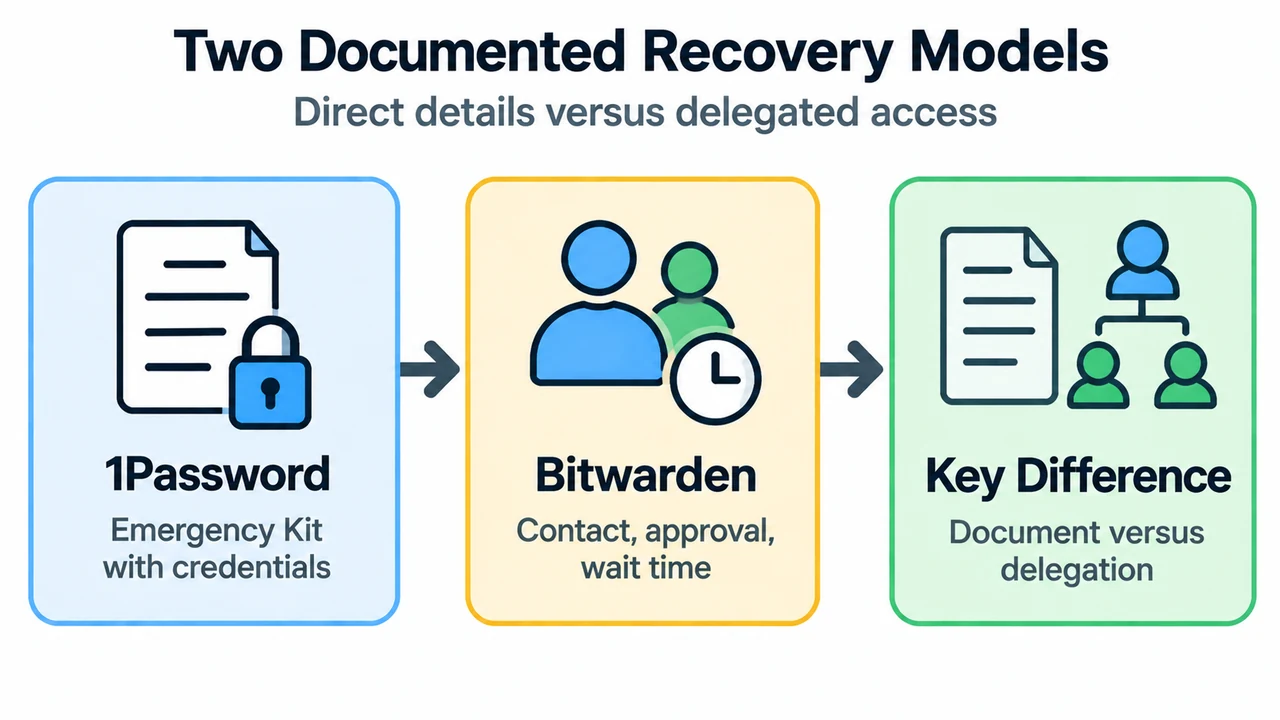
1Password and Bitwarden use different documented models for emergency preparation. 1Password uses an Emergency Kit PDF document containing account sign-in details and a Secret Key. Bitwarden provides a delegated Emergency Access system using public key exchange and asymmetric encryption with designated contacts in a zero-knowledge encryption environment.
| Feature | 1Password (Emergency Kit) | Bitwarden (Emergency Access) |
|---|---|---|
| Core Mechanism | PDF document containing sign-in address, email address, unique Secret Key, and a place to record an account password. | Public key exchange and asymmetric encryption with designated trusted Bitwarden contacts. |
| Documented Availability and Restrictions | Available when creating an account or via 1Password.com; unavailable if an administrator turns off Emergency Kits for the organization or if the account unlocks with SSO. | Available to premium users and members of paid organizations (Families, Teams, and Enterprise); unavailable if an organization enables the Automatic confirmation policy. |
| Access Models | Direct account sign-in on 1Password.com or in apps using the stored credentials. | View (view/read access to items in the vault) or Takeover (permanent read/write access after creating a master password). |
| Emergency Contact Requirement | None required; users may optionally give a physical or digital copy of the kit to someone trusted. | Requires designating a contact who has a free or premium account on the same Bitwarden server. |
| Grant Mechanism | Direct sign-in using stored document details with no grantor approval workflow. | Grantor manual approval or automatic access release once a grantor-specified wait time lapses. |
1Password: The Emergency Kit Approach
According to 1Password Support, 1Password prompts users to save an Emergency Kit when creating an account. A user can also obtain a replacement copy on 1Password.com by signing in, choosing Manage Account from their name menu, and selecting Save Emergency Kit.
What the Emergency Kit Contains
The Emergency Kit consolidates details needed to sign in to an account on 1Password.com or in the apps:
- Sign-in address: The web address used to sign in to the account.
- Email address: The email address used to create the account.
- Secret Key: A unique code which protects account data.
- Account password field: A place to record the 1Password account password.
- Setup Code: A QR code that makes it easier to sign in on mobile devices.
Storage Guidance and Configuration Limits
Official guidance recommends printing a copy to store in a safe deposit box or alongside a passport or birth certificate, and writing the account password in at least one printed copy. If two-factor authentication is active on the account, documentation advises writing down the 16-character secret next to the QR code in case access to the authenticator app is lost. Users may also save a digital copy to personal cloud storage or give a copy to someone trusted, such as a spouse or person in their will.
Configuration Limits: A user cannot save an Emergency Kit if an administrator has turned off Emergency Kits for their organization, or if the account unlocks using SSO. Administrators or owners in a 1Password Business account have the option to turn off Emergency Kits for their organization.
Bitwarden: Trusted Emergency Access
As documented by Bitwarden Help, Bitwarden enables premium users to designate trusted emergency contacts who can request vault access.
Access Levels: View vs. Takeover
When inviting a trusted emergency contact, the account owner selects one of two permission levels:
- View: When granted, provides view/read access to all items in the grantor’s individual vault, including login passwords and attachments.
- Takeover: When granted, requires the contact to create a new master password for permanent read/write access. This replaces the previous master password and removes any previously configured two-step login methods.
Cryptographic Workflow
Bitwarden operates Emergency Access within a zero-knowledge encryption environment via public key exchange and encryption/decryption:
- The grantor invites another Bitwarden user (grantee) as a trusted contact. The invitation specifies the access level, requests the grantee’s RSA Public Key, and remains valid for five days.
- The grantee accepts the invitation via email, storing their RSA Public Key with their user record.
- The grantor receives an email notification of acceptance and confirms the grantee. Upon confirmation, the grantor’s User Symmetric Key is encrypted with the grantee’s RSA Public Key and stored with the invitation.
- When an emergency occurs, the grantee submits an emergency access request.
- The grantor receives email notification of the request. The grantor can manually approve the request at any time, or the request will be granted once the grantor-specified wait time expires. Alternatively, the grantor can reject the request to prevent access without removing the contact or blocking future requests.
- Once approved or after the wait time expires, the Public Key-encrypted User Symmetric Key is delivered to the grantee for decryption using their RSA Private Key.
Eligibility and Account Restrictions
Adding a trusted contact requires a premium subscription or membership in a paid organization (Families, Teams, or Enterprise). Any user with an account on the same Bitwarden server (free or premium) can be appointed as a contact, and premium users may add an unlimited number of contacts. Emergency access is unavailable if an organization enables the Automatic confirmation policy.
Text version of the diagrams
- Prepare Before Access Is Needed: Prepare — Store documented access details; Emergency — A trusted person needs access; Access — Follow the vendor workflow
- Two Documented Recovery Models: 1Password — Emergency Kit with credentials; Bitwarden — Contact, approval, wait time; Key Difference — Document versus delegation
Key Differences Documented by Vendors
Vendor support documentation reflects clear operational contrasts:
- Contact Account Requirements: 1Password’s Emergency Kit does not require designated third parties to create or maintain a separate service account. Bitwarden requires trusted emergency contacts to have an account on the same Bitwarden server.
- Approval Controls: Bitwarden allows account holders to review access requests through email notifications and a configurable wait time, with an option to reject requests. 1Password’s Emergency Kit functions as a physical or digital document containing sign-in credentials for direct access.
- Two-Step Verification Handling: Bitwarden’s Takeover mode replaces the master password and removes previously configured two-step login methods. 1Password documentation instructs users with two-factor authentication to manually record the 16-character secret next to the QR code in case authenticator access is lost.