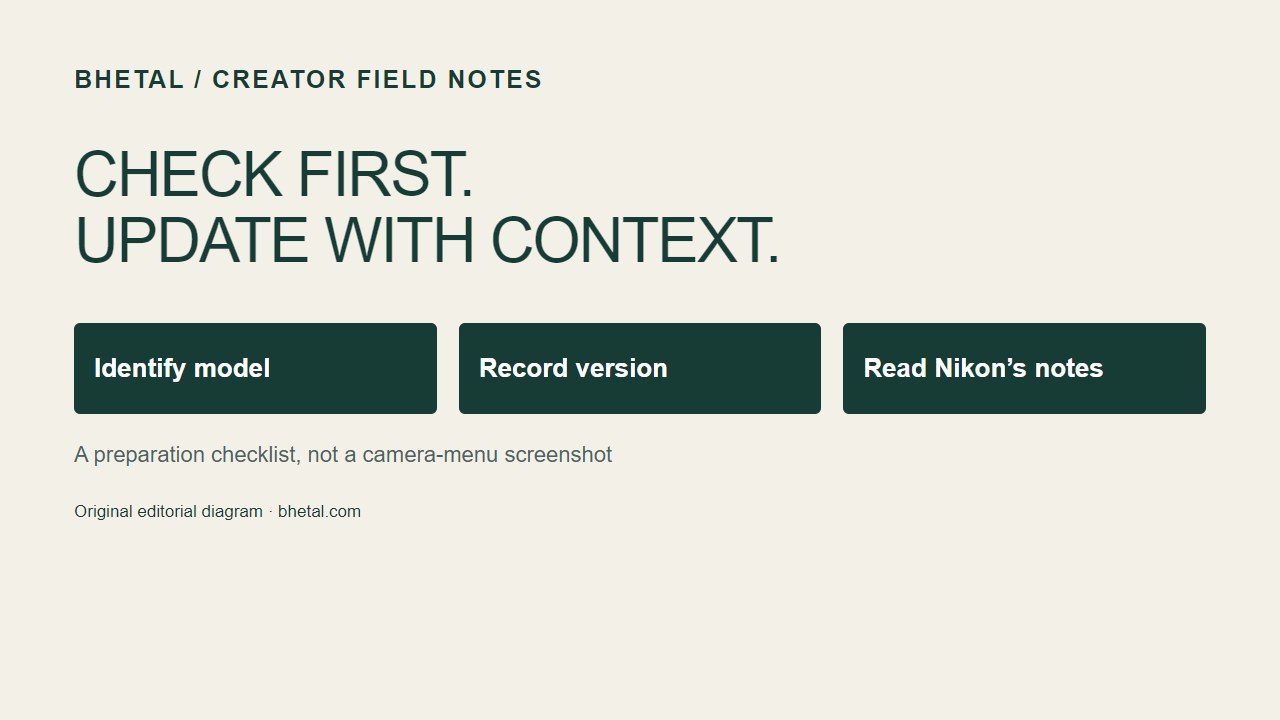
Before downloading camera firmware, establish what is installed and which instructions apply to your exact model. For the Nikon Z6III, that starts with the Firmware version entry in the setup menu. A newer download is a reason to read the release notes, not a reason to use instructions written for a different camera.
Record the version already installed
Open the Z6III setup menu and select Firmware version. Record the camera firmware version as shown. Nikon documents this entry in the Z6III Firmware Version reference. Keep your note alongside the camera model so you do not confuse it with another body or accessory.
Compare against the official model page
Open Nikon’s Z6III Download Center page and follow its firmware entry. Compare the offered version with your note, then read the changes and the installation requirements on that release’s download page. Use the live model page rather than a firmware file linked in an old forum discussion.
We deliberately do not freeze a “latest version” number into this guide. The useful result is a verified comparison at the time you intend to update. If there is no newer applicable release, there is no update to perform through this workflow.
Choose a route supported by your setup
Nikon’s reference describes computer/download-center, SnapBridge and Nikon Imaging Cloud routes. It also notes that SnapBridge notifications can arrive later than the Download Center listing. Available options depend on the camera’s firmware and the required connection setup; an absent app notification alone does not prove that the model page has no update.
Choose one documented route and follow its current instructions from beginning to end. This article is a preparation checklist, not a substitute for the release-specific installation procedure.
Write down what will change
Before starting, make a short note of the current version, the intended version, the release-note change you need and the update route you selected. Set aside time to read the manufacturer’s power, card and completion instructions. If the instructions require formatting a card, copy and verify anything you need from that card first: formatting removes its contents.
After an update completes according to Nikon’s instructions, revisit the firmware-version menu and compare it with your intended version. Check the camera functions your next shoot depends on before treating the maintenance task as finished.
If the versions or instructions do not match
Stop and confirm the exact model page and installed version. Do not improvise a filename, card-slot choice or recovery procedure from a different Nikon model. Use Nikon’s support route for an update failure or an unclear requirement.
Sources and review status
The Nikon references linked above were reviewed on 14 September 2026. This is research-based guidance; we did not perform a Z6III firmware installation for this article. The illustration is a conceptual checklist, not a photograph of the camera’s menus. See our editorial standards for the meaning of these evidence labels.