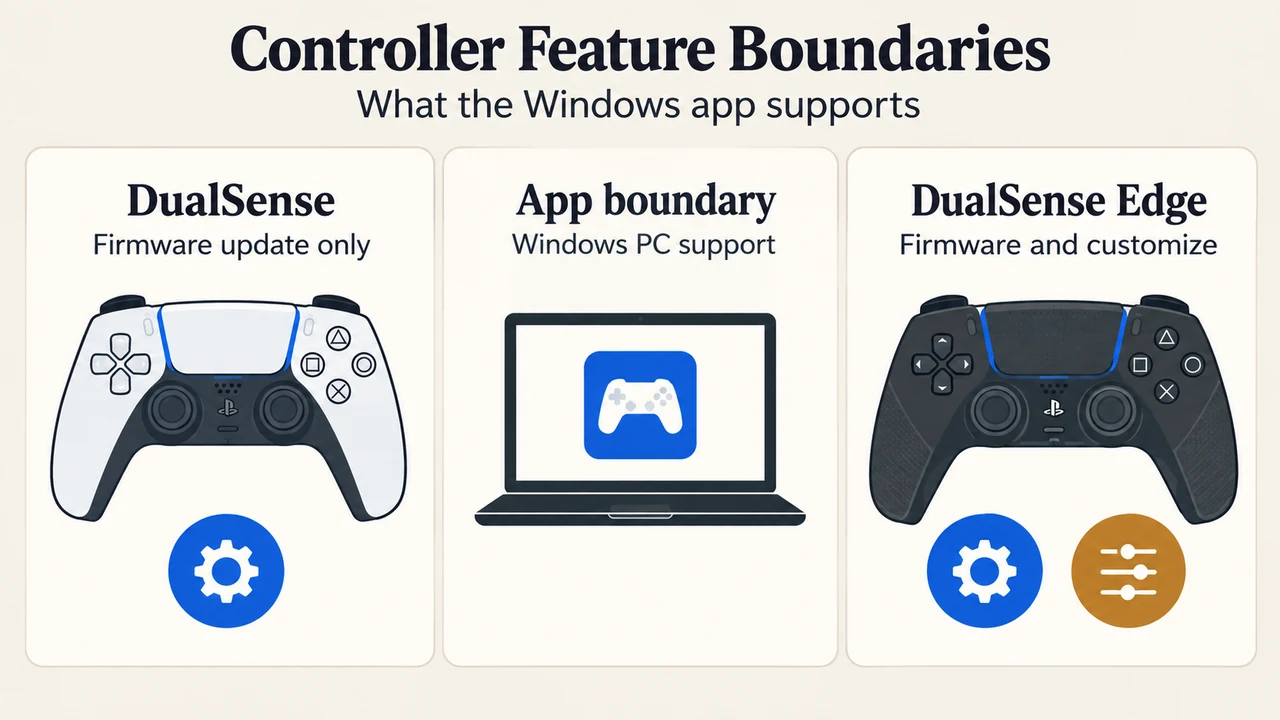
The PlayStation Accessories app on Windows provides desktop software support for Sony’s wireless controllers, but available features depend on whether you connect a DualSense or a DualSense Edge wireless controller. While both controllers support checking battery status and installing firmware updates on a PC, customization options in the Windows app are available only for the DualSense Edge wireless controller.
PlayStation Accessories on Windows: Controller Support Matrix
Official documentation from Sony Interactive Entertainment’s PlayStation Accessories user guide outlines the supported features for each controller model:
| Controller Model | Firmware Update | Customize |
|---|---|---|
| DualSense wireless controller | Supported | Not supported |
| DualSense Edge wireless controller | Supported | Supported |
When you launch the PlayStation Accessories app with a standard DualSense wireless controller connected, the screen displays connected controllers, assigned controller numbers, battery levels, app information, and firmware status. If you connect a DualSense Edge wireless controller, additional customization settings also appear on the screen.
PC System Requirements and Connectivity
To run the PlayStation Accessories app, Sony specifies the following Windows PC system requirements:
- Operating System: Windows 10 (64-bit) or Windows 11
- Storage Space: 250 MB or more
- Display Resolution: 1280 × 800 or higher
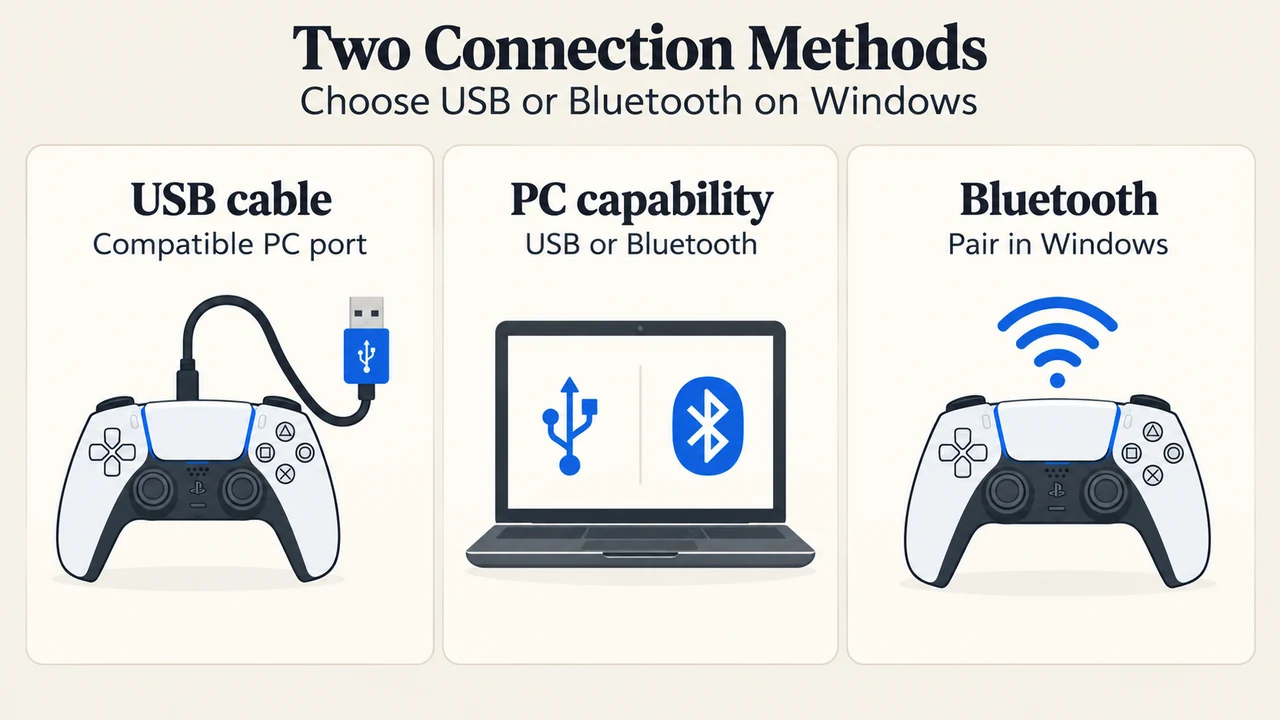
- Connection Hardware: A compatible USB port or Bluetooth capability (commercially available Bluetooth USB adapters can be used, though not all adapters are supported)
The application is operated using a mouse or keyboard. Up to four controllers can connect simultaneously, with controller numbers assigned in the order of connection.
Wired and Bluetooth Connection Boundaries
Controllers can connect to a Windows PC using either a wired USB connection or wireless Bluetooth pairing. For a wired connection, plug a USB cable into the controller’s USB Type-C port and connect it to a compatible PC port. If the USB cable is removed, the controller disconnects and turns off automatically.
To connect wirelessly using Bluetooth:
- Disconnect any connected USB cable and verify that the light bar and player indicator are off. If they are lit, press and hold the PS button until they turn off.
- Press and hold both the Create button and the PS button together for at least 3 seconds. The light bar and player indicator flash twice.
- Enable Bluetooth on your Windows PC and add a Bluetooth device.
- Select your controller from the list of found Bluetooth devices. When pairing finishes, the light bar and player indicator light up.
You can pair up to four devices to a single controller. Turning the controller off disconnects it; the next time you press the PS button, it powers on and connects to the PC it was last paired with.
Firmware Update Procedure and Safety Rules
Sony recommends keeping the desktop application and controller firmware updated to protect against security risks and avoid compromising controller functionality. When an update is available, an Update indicator appears next to the controller firmware section in the app.
During the firmware update process, observe these documented boundaries:
- Do not disconnect: Do not turn off your Windows PC or disconnect your controller while an update is in progress.
- Sequential updates: When multiple controllers are connected, you must update one controller at a time.
Documented Troubleshooting Steps
If the application or controller does not work properly, official documentation lists the following steps:
- Update software: Update both the PlayStation Accessories app and the controller to the latest software release.
- Reconnection: Turn off the controller and attempt to connect again.
- App restart during games: If a game is not working properly, close the PlayStation Accessories app and reconnect the controller.
- Hardware reset: If the controller responds unexpectedly, press the reset button using a fine-tipped pen or similar tool. This action will not reconfigure the controller or affect existing pairing and profile settings.
For developer line art and naming conventions, Sony provides additional materials in its PlayStation Controller Developer Resources.
Text version of the diagrams
- Controller Feature Boundaries: DualSense — Firmware update only; App boundary — Windows PC support; DualSense Edge — Firmware and customize
- Two Connection Methods: USB cable — Compatible PC port; PC capability — USB or Bluetooth; Bluetooth — Pair in Windows
Research Method and Limitations
This explainer was prepared strictly from the supplied public source excerpts published by Sony Interactive Entertainment: the PlayStation Accessories App Information and User Guide (URL 2100004.html) and the PlayStation Controller Developer Resources (URL 2100001.html). Material limitations include the absence of competing coverage excerpts and the omission of linked sub-pages (such as detailed customization menus or multi-device pairing guides) in the provided text. Consequently, specific customization sub-settings beyond generic customization support are omitted.