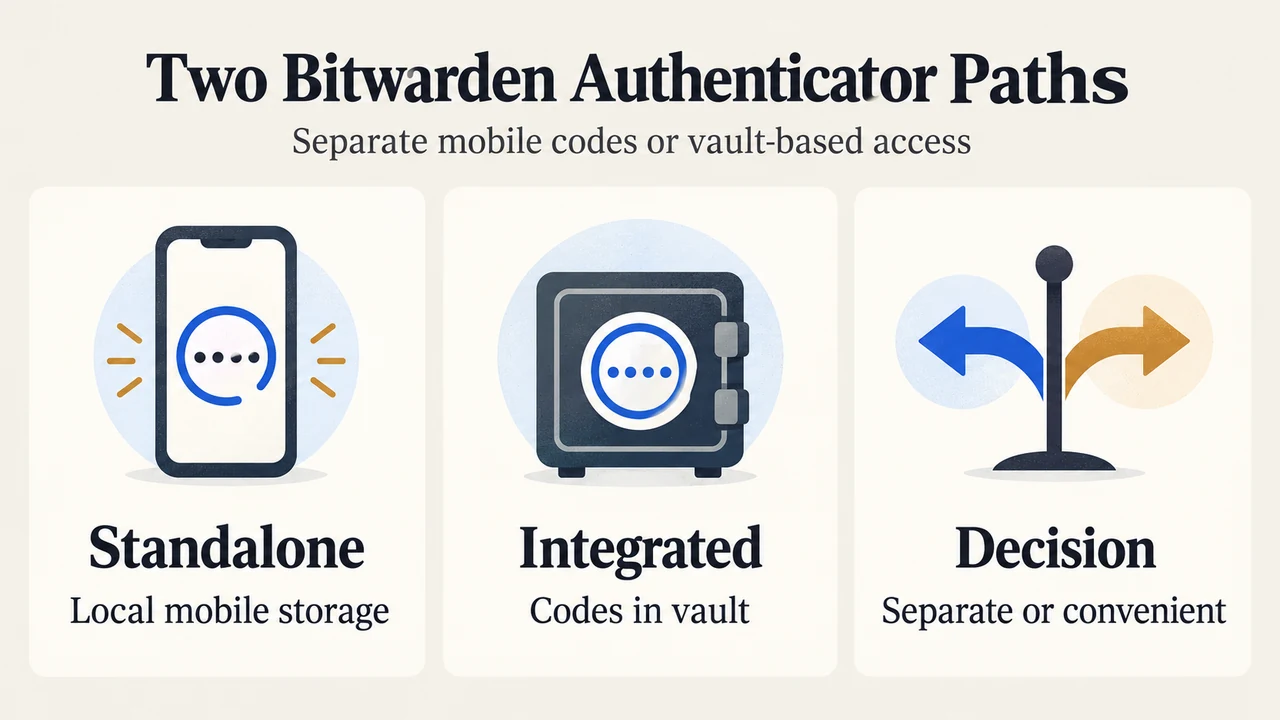
The Bitwarden Authenticator app is a standalone mobile application that generates time-based one-time passwords (TOTPs) on iOS and Android without requiring a Bitwarden account. In contrast, the Bitwarden Password Manager integrated authenticator is an embedded capability inside Bitwarden Password Manager that stores secret keys and generates verification codes across mobile, browser extension, desktop app, and web app clients.
Choosing between these two tools depends on your preferred security boundaries, convenience, and account tier. The standalone Bitwarden Authenticator app stores verification data in a local unencrypted database on your mobile device rather than syncing it to Bitwarden servers by default. Meanwhile, the integrated authenticator stores keys directly in your Bitwarden vault and supports autofill on browser extensions and iOS 18+.
At a Glance: Documented Differences
Both applications produce standard time-based verification codes that rotate every 30 seconds by default using the SHA-1 algorithm. Their documented account dependencies, platforms, storage locations, and autofill behaviors differ as follows:
| Feature | Bitwarden Authenticator (Standalone) | Integrated Authenticator (Password Manager) |
|---|---|---|
| Account Requirement | None (available to everyone with or without a Bitwarden account) | Bitwarden account required; all accounts can store keys, but generating TOTP codes requires Premium or membership in a paid organization (Families, Teams, or Enterprise) |
| Supported Platforms | Mobile only (iOS 15+, Android 9+) | All Bitwarden clients (mobile, browser extension, desktop app, web app) |
| Default Storage | Local unencrypted database on your device (not synced to Bitwarden servers by default) | Your Bitwarden vault |
| Code Generation Capabilities | Generates 5–10 digit codes; SHA-1 default; allows configuring custom algorithm, refresh period, and digit count for local items | Generates 6-digit codes by default; customizable via otpauth://totp/ URI (1–10 digits, custom period, SHA-1/SHA-256/SHA-512) and supports 5-digit alphanumeric Steam Guard keys |
| Autofill Support | Manual copy-and-paste from app | Autofills codes in browser extensions and on iOS (version 18.0+); browser extension can also copy codes to the clipboard automatically |
| Backup & Recovery | Device cloud backup (such as iCloud Backup or Google One) or manual data export | Stored in your Bitwarden vault; can export a .json file of vault TOTPs |
Licensing and Account Eligibility
Anyone can download and use the standalone Bitwarden Authenticator without registering a Bitwarden account. It functions independently on your mobile device.
The integrated authenticator within Bitwarden Password Manager divides key storage and code generation by tier:
- Free Bitwarden Accounts: Can manually enter and store authenticator keys inside vault login items, but do not generate rotating TOTP codes.
- Paid Accounts: Generating active TOTP codes in the vault requires an individual Premium subscription or membership in a paid organization (Families, Teams, or Enterprise).
Storage Architecture and Operational Boundaries
The two tools use different default storage locations and access models.
Standalone App Storage Model
In the standalone Bitwarden Authenticator, secret keys and associated metadata are stored in a local unencrypted database on your device. This data is not synced to Bitwarden servers. To protect local data, users can configure biometric login inside the app alongside device lock screens. Device cloud backups (such as iCloud Backup or Google One) create backups of this data.
Because the standalone app operates independently of your Bitwarden vault by default, you can use it to add two-factor authentication to your Bitwarden account. Bitwarden documentation notes that if you do this, you must keep the verification entry saved strictly as a local code in Authenticator; syncing that code to the same vault it protects could lock you out.
Integrated Authenticator Storage Model
The integrated authenticator stores secret keys and calculates codes directly within your Bitwarden vault login items. When you are logged in to your vault, generated codes remain available even when the device is offline. Storing credentials and two-factor keys together in the vault allows all-in-one management, but it also means anyone with access to that unlocked vault item can see both the login credentials and the generated verification code.
Syncing and Cross-App Interoperability
Users who run both applications can connect them to synchronize verification codes between the standalone Authenticator and their Bitwarden vault:
- Codes stored only in Authenticator are labeled Local Codes.
- Codes synced from Password Manager are labeled by your account email address.
- To edit a code synced from your vault, update the parent login item in Password Manager. Local codes stored only in Authenticator can be edited directly by long-pressing the entry.
- When scanning a QR code or entering a key in Bitwarden Authenticator, you can choose whether to Save here (store only in Authenticator) or Save to Bitwarden (save as a login item in Password Manager).
- You can also manually copy a local code to Password Manager later to permit syncing.
Everyday Workflow and Autofill Boundaries
Workflow depends on the client and platform you are using.
Browser and Desktop Workflows
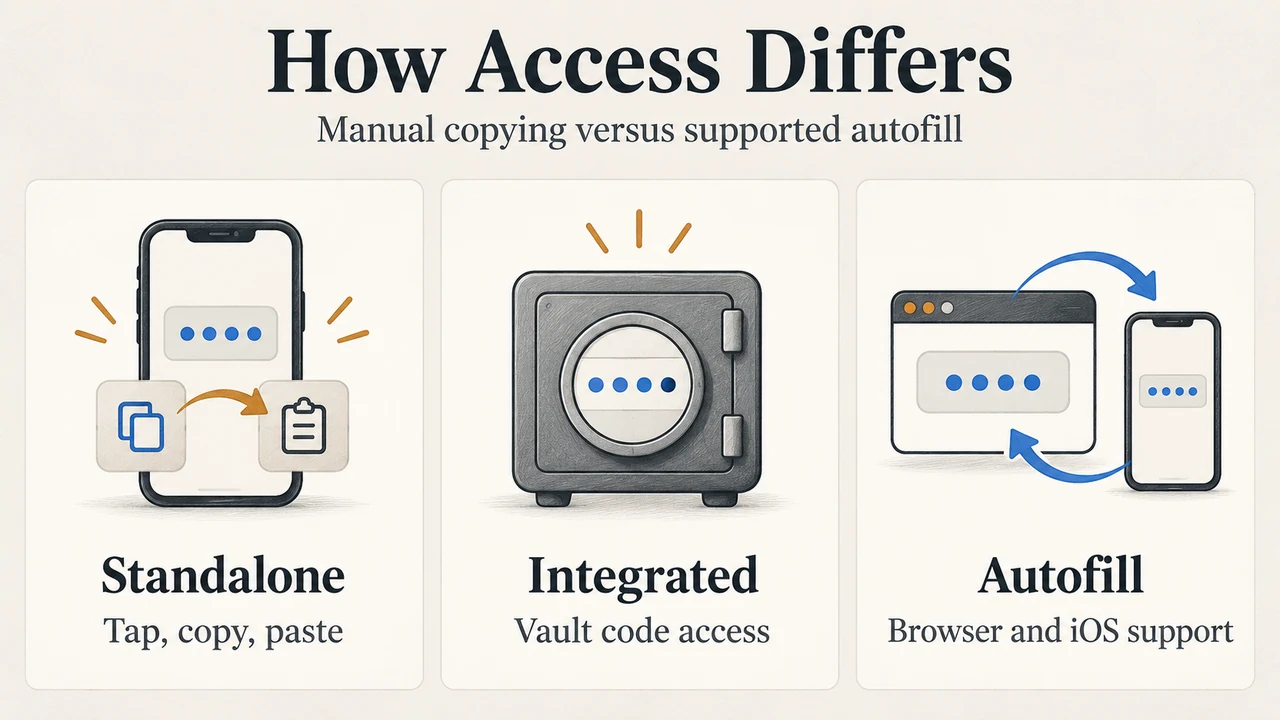
The standalone Bitwarden Authenticator does not have browser extensions or desktop apps. Using it while working on a computer requires opening the mobile app, tapping an entry to copy the code, and pasting or typing it into the login prompt.
The integrated authenticator works across desktop apps, web apps, mobile apps, and browser extensions. However, automated autofill is limited to browser extensions and iOS 18.0+. When using autofill in the browser extension, Bitwarden copies the TOTP code to the clipboard by default (configured under Settings > Autofill > Copy TOTP automatically) unless autofill on page load is active. On desktop apps and the web vault, codes must be viewed and copied manually from the vault item.
Camera and Setup Features on iOS
On iOS 16+, users can set either Bitwarden Authenticator or Password Manager integrated authentication as their default verification code app under iOS Settings > General > AutoFill & Passwords > Password Options. This allows scanning verification QR codes directly from the native camera app into the selected application.
Backup and Device Migration Procedures
Migrating verification codes to a new mobile device depends on how your codes are stored:
- Local Codes in Authenticator: Export your data from the Authenticator app on the old device and import that file into Authenticator on the new device, or restore your device from an iCloud or Google One cloud backup.
- Synced Vault Codes: Set up sync on the new device to pull verification codes attached to saved vault items, or export a
.jsonfile of vault TOTPs and import it into Authenticator on the new device.
Which Solution Should You Choose?
Choose the Standalone Bitwarden Authenticator If:
- You want to store two-factor verification codes separately from your password manager.
- You use a free Bitwarden account and want to generate rotating TOTP codes on mobile without upgrading to Premium or a paid organization.
- You do not use Bitwarden Password Manager and want a standalone TOTP generator for iOS or Android.
- You want an authenticator app to protect your primary Bitwarden account login (kept saved as a local code).
Choose the Integrated Authenticator If:
- You prefer all-in-one password and two-factor management across mobile, browser extensions, desktop apps, and the web app.
- You already have a Bitwarden Premium subscription or belong to a paid organization (Families, Teams, Enterprise).
- You want TOTP autofill in browser extensions or on iOS 18+.
- You need to customize parameters using
otpauth://totp/URIs across vault clients, or use Steam Guard keys (steam://your_secret_key_here), keeping in mind Bitwarden’s warning that third-party extraction tools required to obtain Steam secrets are not officially supported by Bitwarden or Steam and are used at your own risk.
Text version of the diagrams
- Two Bitwarden Authenticator Paths: Standalone — Local mobile storage; Integrated — Codes in vault; Decision — Separate or convenient
- How Access Differs: Standalone — Tap, copy, paste; Integrated — Vault code access; Autofill — Browser and iOS support
Research Methodology and Limitations
This comparison was prepared exclusively from the supplied public Bitwarden documentation for the standalone Bitwarden Authenticator app and Password Manager integrated authenticator. It does not reflect hands-on testing, external security audits, or benchmarks. Evaluation is limited to the features and platform requirements described in the provided vendor excerpts, and competing third-party authenticator coverage was unavailable in the source material.