Android 16 Advanced Protection is designed for users who prefer stronger security even when some features become less convenient. Google documents restrictions on unknown-app installation, certain accessibility services, 2G connections on supported devices, USB access while the screen is locked, watch-based unlocking, selected Chrome features, and other protections. It also preserves some app-installation paths and does not remove non-Google Play apps that are already installed.
The setting is most relevant to people facing higher security risks, including journalists and activists, and to users who can accept reduced flexibility. Availability and behavior depend on the device, supported features, apps, and—in the case of automatic call screening—the region. This article is based on the supplied Google support and Android developer documentation, checked September 19, 2026. It makes no hands-on, laboratory, benchmark, or comprehensive device-compatibility claim.
What Advanced Protection changes on Android 16
Google describes Advanced Protection as a single control that turns on a group of security and privacy settings. The Android developer documentation says the mode was launched in Android 16 and is intended to strengthen protection for at-risk users. It also notes that security takes priority over some functionality and usability.
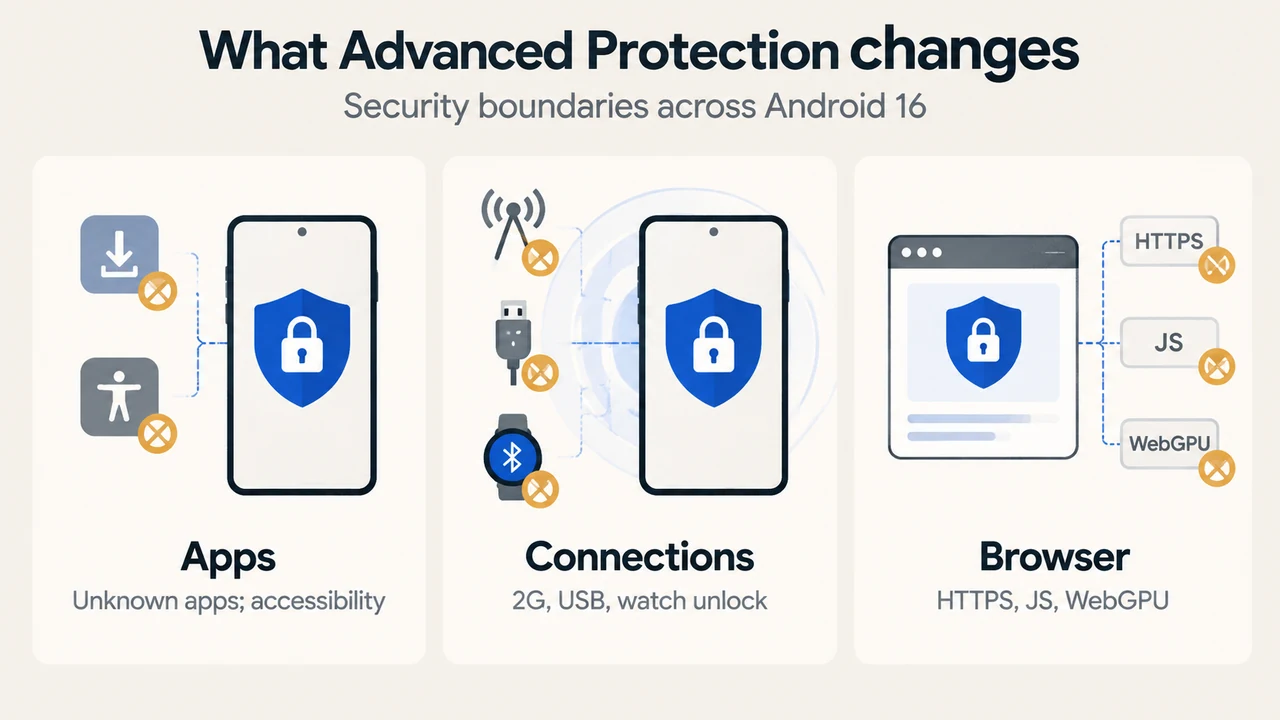
On the device, Google documents these restrictions and protections:
- Unknown apps: installation from unknown sources is blocked, and updates for apps originally installed from unknown sources are blocked.
- Accessibility: accessibility services are restricted to verified accessibility tools.
- Networking: supported devices are prevented from connecting to less-secure 2G networks. This can prevent cellular service where only 2G coverage exists.
- USB: USB Protection helps protect the device from unauthorized access through a USB connection while the screen is locked.
- Watch Unlock: watch-based automatic unlocking is restricted.
- Chrome: Chrome enforces HTTPS for website connections when possible. Its JavaScript optimizer and WebGPU are turned off under Advanced Protection.
- Memory protection: Memory Tagging Extension, where supported by apps, helps prevent memory corruption. Google warns that it may reduce device performance.
- Automatic security responses: Theft Detection Lock, Offline Device Lock, Inactivity Reboot, and Failed Authentication Lock are included in the documented device-safety protections.
These are documented controls, not a guarantee that every Android 16 device exposes every feature. Google repeatedly qualifies some protections by device, app, or region.
What remains available for app installation
Advanced Protection does not remove every installation route. Google’s account documentation says users can still install Android apps from Google Play, Android Debug Bridge (ADB), and preinstalled Android app stores. Apps installed before Advanced Protection is enabled are not removed and continue to receive updates.
Google also says Advanced Protection can warn about Play Store apps that have not been approved. Its guidance is to install such an app only when it is essential or the developer is trusted. The supplied documentation does not establish that every app outside Google Play is blocked in every configuration, so the documented exceptions should not be treated as a universal description of all installation behavior.
Security protections in Google apps and services
Advanced Protection acts as a shared control point for several Google features. The Android support page lists Google Play Protect, spam and scam protection in Google Messages, warnings for unsafe links from unknown users, Scam Detection, Android Safe Browsing Live Threat Protection, and Chrome protections.
For Phone by Google, the documented protections include Caller ID and Spam. Automatic Call Screen is listed only for supported regions. It should therefore be treated as a region-dependent feature, not a universal Android 16 result.
Google’s documentation also describes optional Intrusion Logging. If enabled, encrypted device logs are backed up to a selected Google Account for security investigations. The feature is optional, and the supplied excerpts do not establish how it behaves on every device or account configuration.
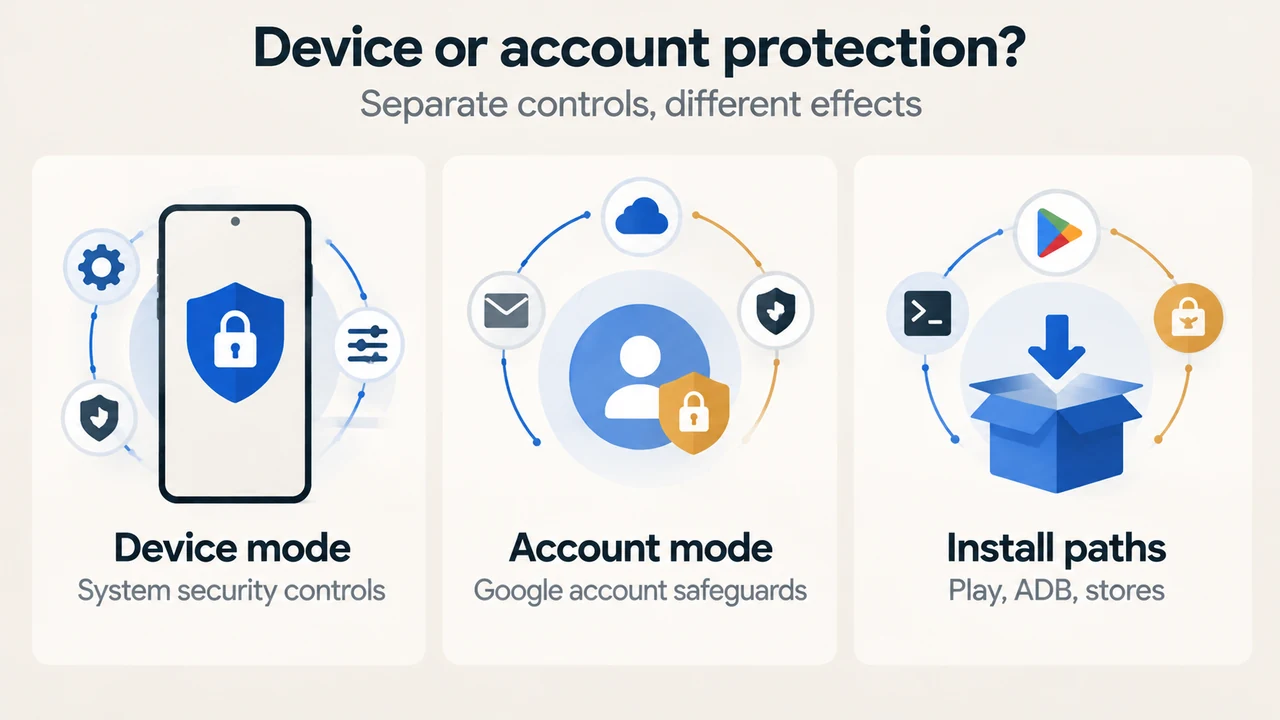
Device protection and account protection are separate choices
The Android support page distinguishes Device protection from Account protection. Device protection is enabled from the Advanced Protection settings on the device. Account protection enrolls a Google Account in Google’s Advanced Protection Program.
Account enrollment adds protections for the Google Account and Google products used with it. Google says that, when enrolled, Android devices receive extra security measures, including automatic Play Protect scanning and limited installations outside Google Play.
The two settings can affect how Advanced Protection is removed. Turning off Device protection restores covered settings to their earlier state, although Google says some protections may continue if the account is enrolled in Account Protection. Unenrolling the account removes the increased Google Account security, and Google says automatic protections may take up to 24 hours to stop after the documented removal steps.
Who should consider enabling it?
Advanced Protection is a strong candidate for Android 16 users who face elevated threats or who value tighter defaults more than maximum app and accessory flexibility. Google’s developer documentation specifically names at-risk users such as journalists and activists.
It may be a poor fit if you regularly depend on installing apps from sources not covered by the documented exceptions, an unverified accessibility service, 2G-only coverage, watch-based unlocking, or Chrome features that Advanced Protection disables. The supplied sources do not provide a complete compatibility list for every app, device, carrier, region, or accessibility tool, so those decisions require checking the relevant product documentation.
Before you enable or disable it
A screen lock is required before Device protection can be turned on. Google says some devices may require a reboot to enable or disable features. The setting can be turned off through Advanced Protection settings, with biometric or PIN authentication. If the device asks whether to restart now or later, Google documents both choices.
Before enabling it, check whether your daily setup depends on sideloaded-app updates, a particular accessibility service, 2G coverage, Watch Unlock, or Chrome behavior that may change. Before disabling it, remember that Google says covered settings revert to their earlier state, while account-enrolled protections may continue until the account is unenrolled.
Research method and limitations
This candidate was prepared only from the supplied public excerpts from Google Android Help, Google Account Help, and Android Developers, retrieved September 19, 2026. The Android Authority competitor excerpt was used only to compare coverage and was truncated. No device testing, lab measurement, benchmark, hands-on review, or comprehensive compatibility survey was performed. Statements above are limited to the visible documentation and its stated qualifiers for Android 16, supported devices, supported apps, and supported regions.
Text version of the diagrams
- What Advanced Protection changes: Apps — Unknown apps; accessibility; Connections — 2G, USB, watch unlock; Browser — HTTPS, JS, WebGPU
- Device or account protection?: Device mode — System security controls; Account mode — Google account safeguards; Install paths — Play, ADB, stores