On Apple devices running iOS 18, iPadOS 18, macOS Sequoia 15, watchOS 11, and visionOS 2, the Private Wi-Fi Address feature assigns randomized Media Access Control (MAC) addresses to prevent network operators and passive observers from tracking your device across different Wi-Fi networks over time. Instead of offering only an on/off toggle as in earlier releases, these operating systems provide three distinct modes: Off, Fixed, and Rotating. Apple documents these exact options and their automatic defaults in its primary guide, Use private Wi-Fi addresses on Apple devices.
Why MAC Randomization Matters for Privacy
To communicate on any local network, a network interface must present a unique hardware identifier known as a Media Access Control (MAC) address. If an Apple device were to expose its static, factory-assigned hardware MAC address across every public and private hotspot it joins, network operators and observers monitoring traffic could correlate that fixed identifier across locations and sessions. Over time, this passive observation enables user profiling and physical location tracking.
By default, Apple’s Private Wi-Fi Address feature substitutes a unique, randomized MAC address specific to each network name (SSID), breaking cross-network tracking without changing the normal way devices join and communicate on supported networks.
Documented Settings: Off, Fixed, and Rotating
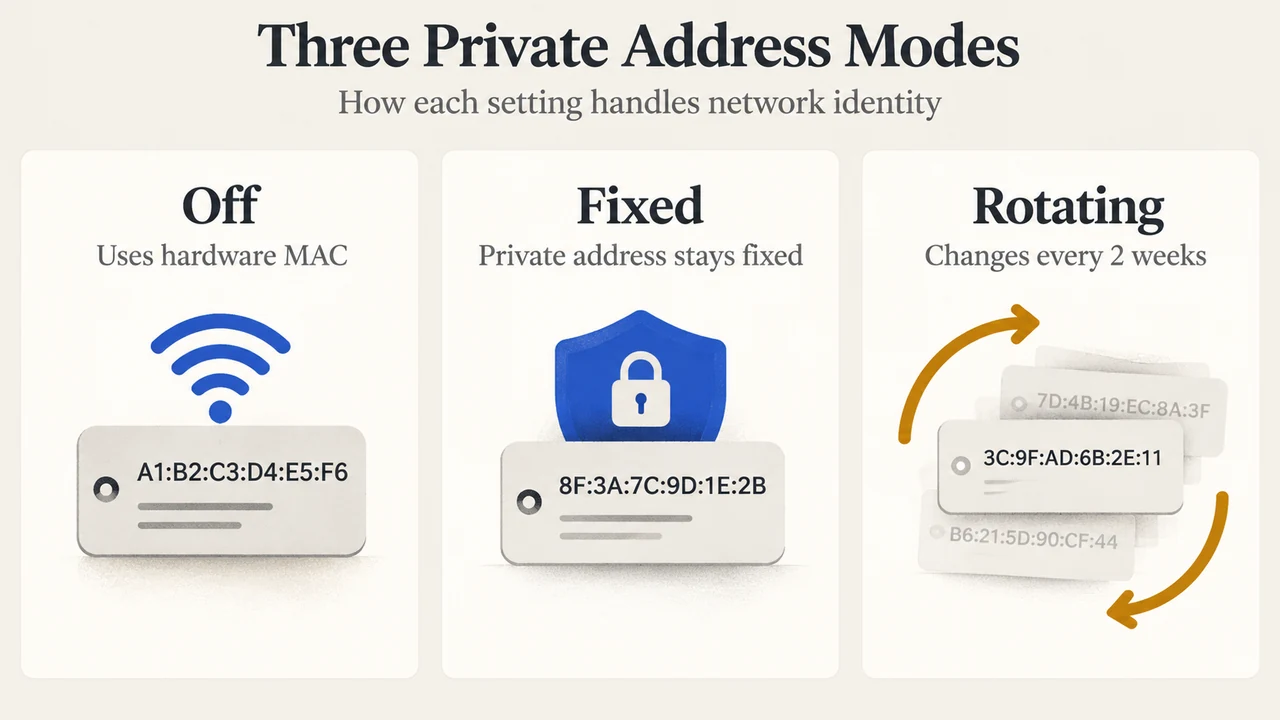
Starting with iOS 18, iPadOS 18, macOS Sequoia 15, watchOS 11, and visionOS 2, Apple separates private addressing behavior into three user-selectable settings:
- Off: Your device disables address randomization for that specific network and broadcasts its factory hardware MAC address.
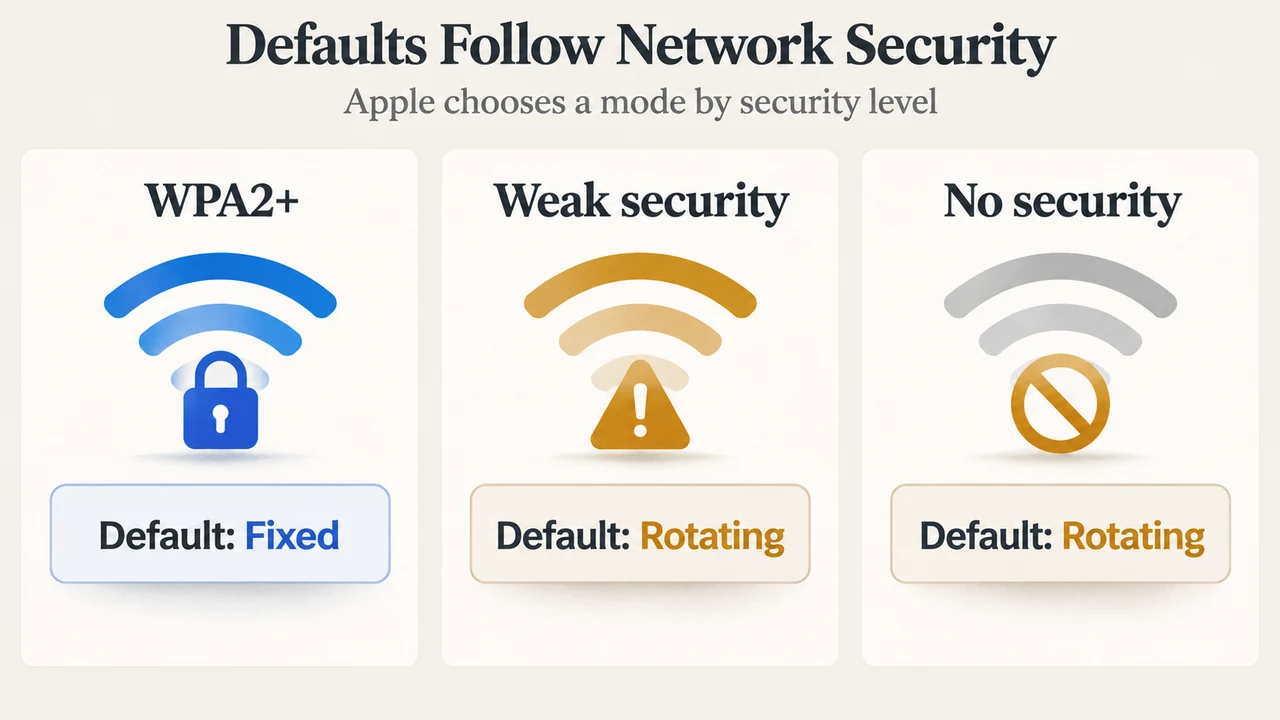
- Fixed: Your device generates a unique private address for that network, but that address does not rotate over time, regardless of how long it has been since you joined or the security level of the network. Apple sets Fixed as the default when connecting to any network secured by WPA2 or stronger encryption.
- Rotating: Your device uses a private address that automatically rotates to a new randomized address every 2 weeks. Apple selects Rotating as the default when connecting to networks configured with weak security or no security at all.
Address Rotation and Reset Behaviors
How and when a device generates a new private address depends on specific system events documented by Apple:
- Forgetting a Network: Starting in iOS 18, iPadOS 18, macOS Sequoia 15, watchOS 11, and visionOS 2, forgetting a network causes the device to forget the associated private address, unless less than 24 hours have elapsed since the last time the network was forgotten. (In earlier OS releases, the retention threshold was 2 weeks).
- Full Resets: Choosing to erase all content and settings or resetting network settings forces the device to generate a completely new private address the next time it connects.
- Earlier OS Thresholds: On platforms prior to iOS 18, if a device did not rejoin a remembered network for 6 weeks, it automatically generated a new private address on its next connection.
Configuring Private Wi-Fi Addressing Across Apple Platforms
Each supported Apple platform provides access to these settings within its local network configuration menus:
- iOS, iPadOS, and visionOS: Open the Settings app, tap Wi-Fi, and tap the More Info button next to the network. If not currently connected, tap Edit in the top-right corner to select the network. Under Private Wi-Fi Address, select Off, Fixed, or Rotating.
- macOS Sequoia 15: Open the Apple menu, select System Settings, click Wi-Fi in the sidebar, and select Details or More Info beside the network. Select Off, Fixed, or Rotating from the Private Wi-Fi Address menu.
- Apple Watch (watchOS 11): Open Settings, tap Wi-Fi, select the network name (or swipe left and tap More Info if not connected), scroll down, and select Off, Fixed, or Rotating.
Troubleshooting and Enterprise Trade-Offs
While Apple notes that private Wi-Fi addressing does not affect how you join or use most networks, randomized identifiers can occasionally introduce operational trade-offs:
- Access Restrictions: If a device cannot connect, cannot reach local network resources or the internet, or experiences issues with specific software, Apple advises checking for and installing the latest software updates before choosing to turn the feature off.
- Enterprise Environments: Organizations and business networks relying on MAC-based access controls may need to update their network infrastructure to accommodate private addressing. Alternatively, enterprise administrators can deploy an MDM-defined network profile to disable private addresses on enrolled managed devices joining the organization’s network.
- Router Notifications: Home or office routers configured to alert administrators when a new device joins will trigger a notification whenever an Apple device first connects using a new private address.
Text version of the diagrams
- Three Private Address Modes: Off — Uses hardware MAC; Fixed — Private address stays fixed; Rotating — Changes every 2 weeks
- Defaults Follow Network Security: WPA2+ — Default: Fixed; Weak security — Default: Rotating; No security — Default: Rotating
Research Methodology and Limitations
This explainer is based solely on publicly available technical documentation provided directly by Apple in support article 102509 (retrieved September 17, 2026). No third-party competitor pages were available or fetched in the research scope. This article does not claim hands-on laboratory hardware testing, proprietary benchmarking, or complete coverage beyond Apple’s documented specifications.