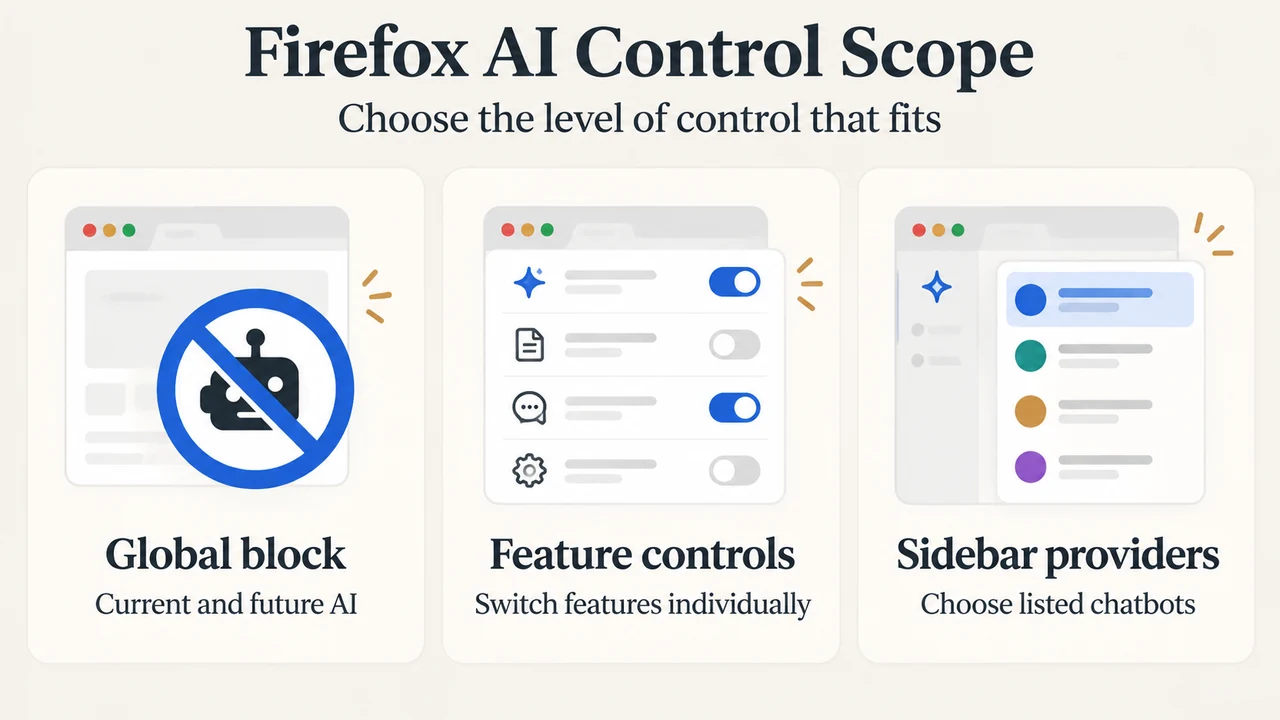
Firefox 148 adds an AI Controls section to desktop Settings. It gives you two documented choices: turn on one setting to block current and future AI-enhanced features, or manage supported features individually. Mozilla says Firefox 148 was first offered to Release-channel users on February 24, 2026.
This guide covers the controls documented for Firefox 148, not every machine or Firefox version. Settings may also respect enterprise policy and locale or region restrictions. Firefox ESR 140.8.0 shipped on the same day, but the Firefox 148 AI-control changes were not backported to that ESR release.
What Firefox 148 adds
Mozilla’s Firefox 148 release notes list an AI Controls section in Settings for managing AI-enhanced features. Mozilla’s feature overview names these supported examples: website translations, image alt text in PDFs, AI-enhanced tab groups, link previews and an AI chatbot in the sidebar.
The control is about newer AI-enhanced browser features. Mozilla notes that traditional machine learning, such as systems that classify, rank or personalize an experience, has already been used in browsers and is separate from the AI Controls description.
Choose the control that matches your goal
| Your goal | Documented choice | What the source says |
|---|---|---|
| Block current and future AI-enhanced features | Turn on Block AI enhancements | Mozilla describes this as a single switch for blocking current and future AI-enhanced features. |
| Keep some supported features and block others | Set features individually | Each listed feature can be set through its dropdown menu. |
| Understand an individual feature’s menu | Available, Enabled or Blocked | Mozilla defines what each state means. |
How to reach AI Controls in Firefox 148
Mozilla documents this Settings path for the latest desktop version of Firefox:
- Open the menu bar and choose Firefox.
- Choose Settings or Preferences.
- Open AI Controls.
The menu wording differs between Settings and Preferences in Mozilla’s instructions. The supplied documentation does not establish that every desktop build, language or managed installation will show the same menu.
Use one global switch or manage features separately
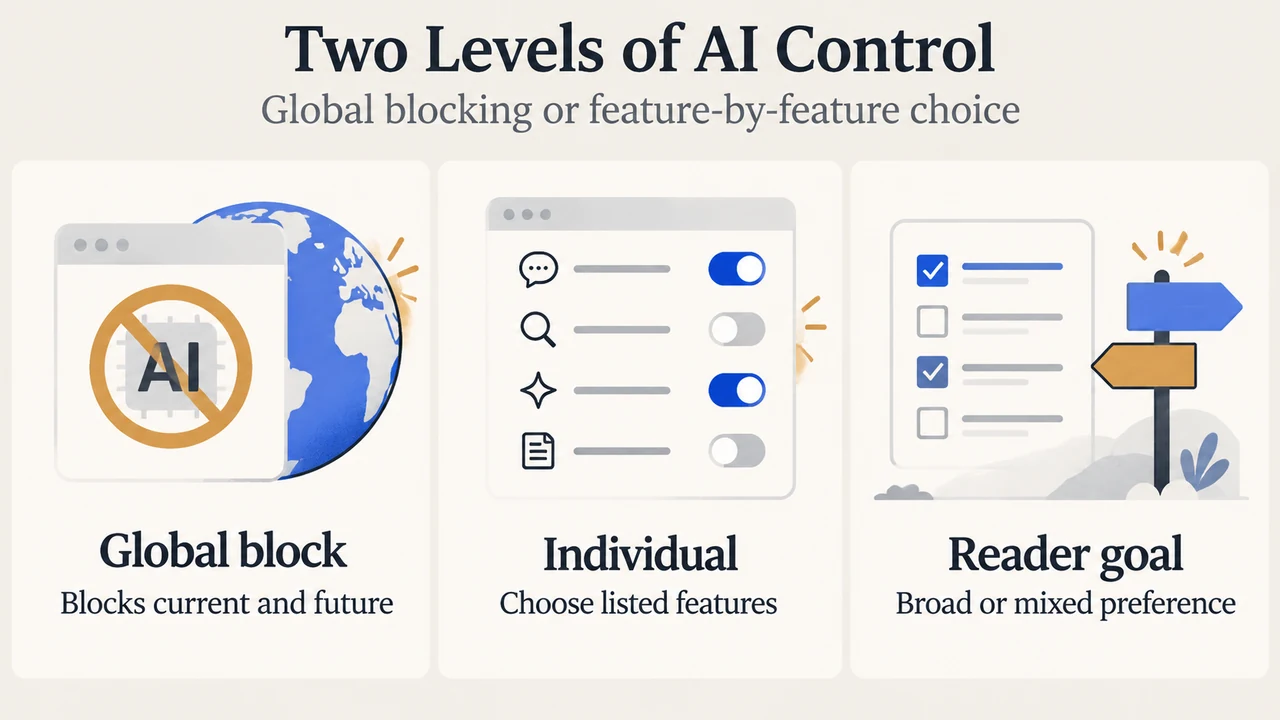
If your decision is “no current or future AI-enhanced features,” turn on Block AI enhancements. Mozilla presents this as the global option.
If your decision is more specific, use the individual feature controls. Mozilla’s example is that you can block link previews while choosing to turn translations on later, without changing the other AI-feature choices. The documented path is Settings or Preferences > AI Controls > feature > dropdown menu > Blocked.
These are two different levels of choice: the global switch expresses one broad preference, while the feature menus let you decide one listed feature at a time. The supplied sources do not document additional controls beyond the global switch and the named individual feature settings.
What Available, Enabled and Blocked mean
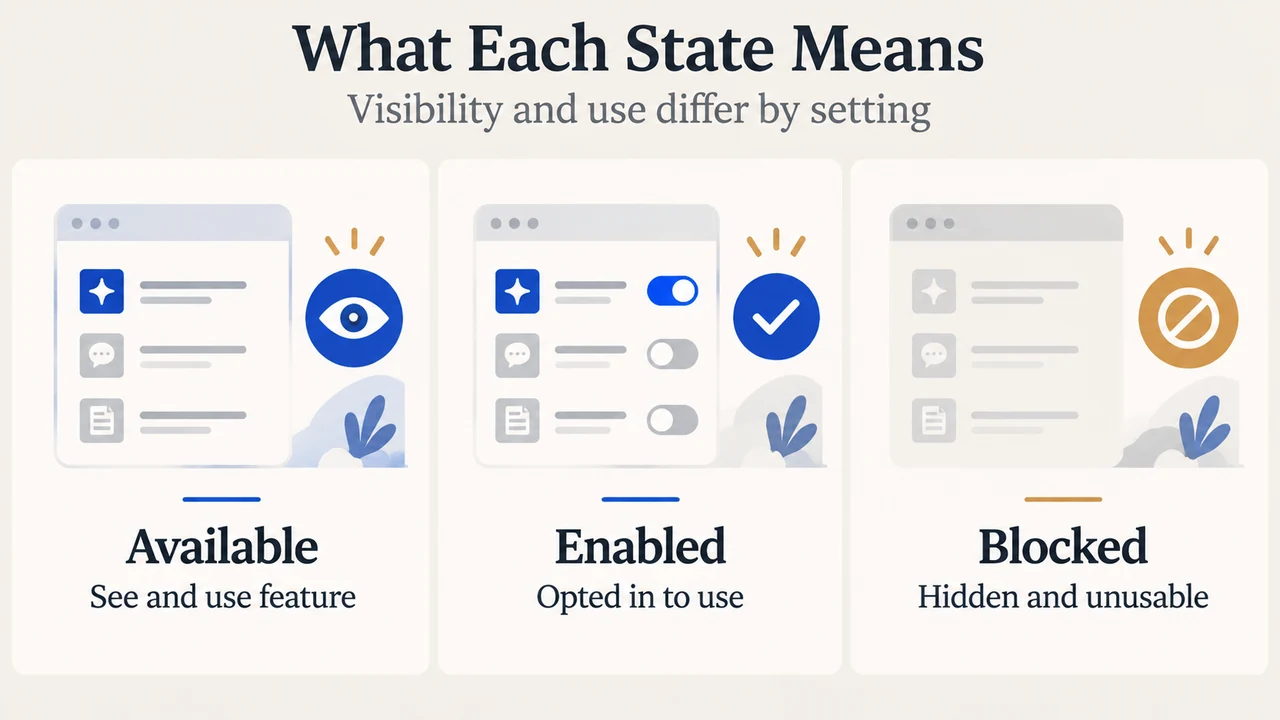
- Available: you can see and use the feature.
- Enabled: you have opted in to use the feature.
- Blocked: the feature is hidden and cannot be used.
Mozilla says you can update these choices in Settings at any time. It also gives image alt text in PDFs and AI-enhanced tab-group suggestions as examples of features a user might choose to enable, while blocking something else.
Important version and management limits
Firefox Release 148 versus Firefox ESR
The enterprise release notes state that Firefox 148 was released on February 24, 2026. They also state that Firefox ESR 140.8.0 shipped that day, but the Firefox 148 changes were not backported to it. Therefore, the Firefox 148 AI Controls description should not be treated as an ESR 140.8.0 feature description.
Enterprise policy and locale or region restrictions
Mozilla’s enterprise notes state that AI Controls settings respect enterprise policy and locale or region restrictions. This means a managed device or a restricted locale or region can affect the settings available to the user. The supplied excerpts do not specify every policy outcome or identify which individual features are restricted in each locale or region.
Two simple ways to decide
If you want a single broad setting, use the global block option. If you want a mixed choice—such as keeping translations or PDF alt text while blocking link previews—inspect the individual feature menus and use their documented states. The sources establish these choices, but they do not promise that every named feature is available in every installation.
Research method and limitations
This article was prepared only from the supplied public excerpts: Mozilla’s Firefox 148 release notes, Mozilla’s AI Controls overview and Mozilla’s Firefox 148 enterprise release notes, retrieved September 19, 2026. The excerpts provide the documented Settings path, feature examples, state meanings and ESR and management limitations. No hands-on test, lab test, benchmark or comprehensive review was performed. No competing page was available in the supplied research, so this article makes no competitor-coverage or ranking claim.
Text version of the diagrams
- Two Levels of AI Control: Global block — Blocks current and future; Individual — Choose listed features; Reader goal — Broad or mixed preference
- What Each State Means: Available — See and use feature; Enabled — Opted in to use; Blocked — Hidden and unusable