iPhone Mirroring lets you view and interact with your iPhone wirelessly directly from your Mac screen. First available starting in macOS Sequoia 15 and iOS 18, this Continuity feature allows you to navigate your iPhone, receive its notifications, and transfer items between devices while your physical iPhone stays locked. Below is an explanation of the official hardware requirements, security guardrails, navigation controls, and material boundaries based on Apple technical documentation.
Hardware, Operating System, and Account Prerequisites
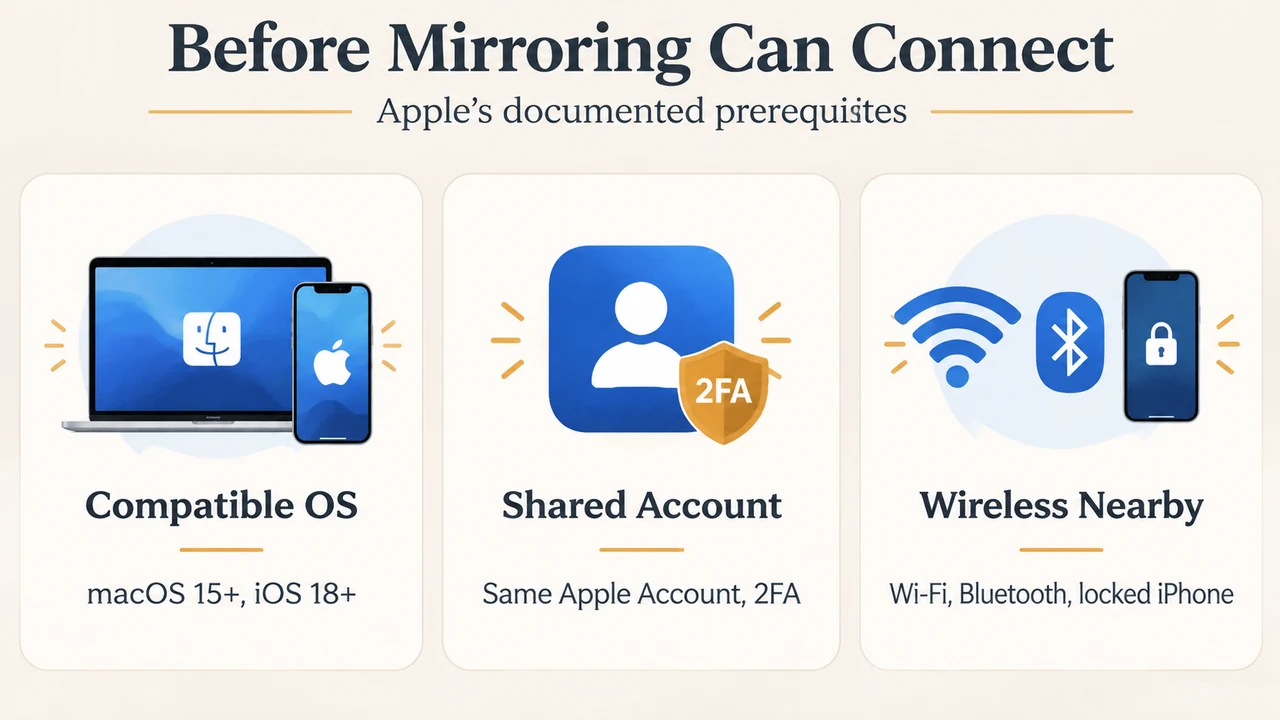
According to Apple’s official documentation (Apple Support: iPhone Mirroring), iPhone Mirroring operates between only one Mac and one iPhone at a time. To establish a connection, your devices must meet the following requirements:
- Mac Hardware and OS: Your Mac must use macOS Sequoia 15 or later and be powered by Apple silicon or the Apple T2 Security Chip.
- iPhone OS and Passcode: Your iPhone must use iOS 18 or later and be configured to use a passcode.
- Apple Account: Both devices must be signed in to the same Apple Account secured with two-factor authentication.
- Wireless Radios and Proximity: Both devices must have Wi-Fi and Bluetooth turned on. The iPhone must be locked and near your Mac (it can also be charging and using StandBy).
- Network and Display Sharing Constraints: Your Mac cannot share its internet connection or use AirPlay or Sidecar.
- Regional Availability: iPhone Mirroring is currently unavailable in the European Union.
Security Controls and Privacy Safeguards
iPhone Mirroring includes several privacy and security behaviors while your phone is operated from your Mac:
- Physical Lock State: While mirroring, your iPhone remains locked so no one else can access it or see what you are doing.
- Visual Indicators: During an active session, your iPhone indicates that it is in use and displays the name of the Mac accessing it.
- Access Auditing: When you unlock your iPhone after mirroring, the device states that it was used from a Mac and links to Settings > General > AirPlay & Continuity > iPhone Mirroring. This settings pane identifies the Mac that used your iPhone, including when and for how long.
- Inactivity Pause: iPhone Mirroring automatically pauses the connection after periods of inactivity.
- Mac Authentication Settings: In the iPhone Mirroring app settings on macOS, you can choose between Ask every time (authenticating using your Mac login password, Touch ID, or Apple Watch) or Authenticate automatically. When automatic authentication is chosen, macOS keeps the Lock Screen setting Require password after screen saver begins or display is turned off set to Immediately.
Navigation, Interactions, and Shortcuts Across macOS Versions
Once connected, you interact with the iPhone window using standard Mac mouse, trackpad, and keyboard inputs:
- Pointer and Keyboard Actions: Click to tap, click and hold to open quick actions menus or edit the Home Screen, and scroll or swipe with your mouse or trackpad. Press and hold the
Shiftkey while scrolling to swipe left or right. - Standard System Navigation Shortcuts:
- Home Screen: Click the Home Screen button in the window toolbar, click the bar at the bottom of the window, or press
Command-1. - App Switcher: Click the App Switcher button in the toolbar, or press
Command-2. - Spotlight: Swipe up from the Home Screen with a mouse or trackpad, or press
Command-3.
- Home Screen: Click the Home Screen button in the window toolbar, click the bar at the bottom of the window, or press
- Preset Window Sizing: In macOS Sequoia 15 or later, you can resize the window using the View menu or keyboard shortcuts: Actual Size (
Command-0), Larger (Command-+), or Smaller (Command--). - macOS 27 Controls and Freeform Resizing: Certain controls require newer operating system releases. Opening Control Center with
Command-4requires macOS 27 or later. Additionally, dragging a corner of the window to resize it requires macOS 27 or later, where apps like Mail, Messages, and Calendar can display more information in wider views, and pressingCommand-9or clicking the toolbar button returns the window to standard size. (Viewing Live Activities on Mac similarly requires macOS Tahoe 26 or later). - Copying Items Between Devices: You can copy items using drag and drop (such as dragging videos between the Photos app and desktop, or files between the Files app and iCloud Drive), Universal Clipboard, or AirDrop.
Hardware and Feature Boundaries
iPhone Mirroring enforces specific hardware and playback boundaries:
- Camera and Microphone: Access to the iPhone camera and microphone is not available in iPhone Mirroring, including for Face ID or phone calls.
- Phone Calls: Standard calls cannot be made or received through the mirrored window. To make calls from your Mac while iPhone Mirroring is active, calls must be handled by the Mac itself, requiring Wi-Fi Calling to be turned on on both devices.
- Streaming Content Policies: iPhone audio routes through your Mac speakers (unless you listen through headphones connected to your iPhone). However, streaming content providers might enforce playback restriction policies that affect whether their premium video can be mirrored.
- Game Controllers: To use a wireless game controller with iPhone apps that support controllers, you must connect the controller via Bluetooth directly to your iPhone, not your Mac.
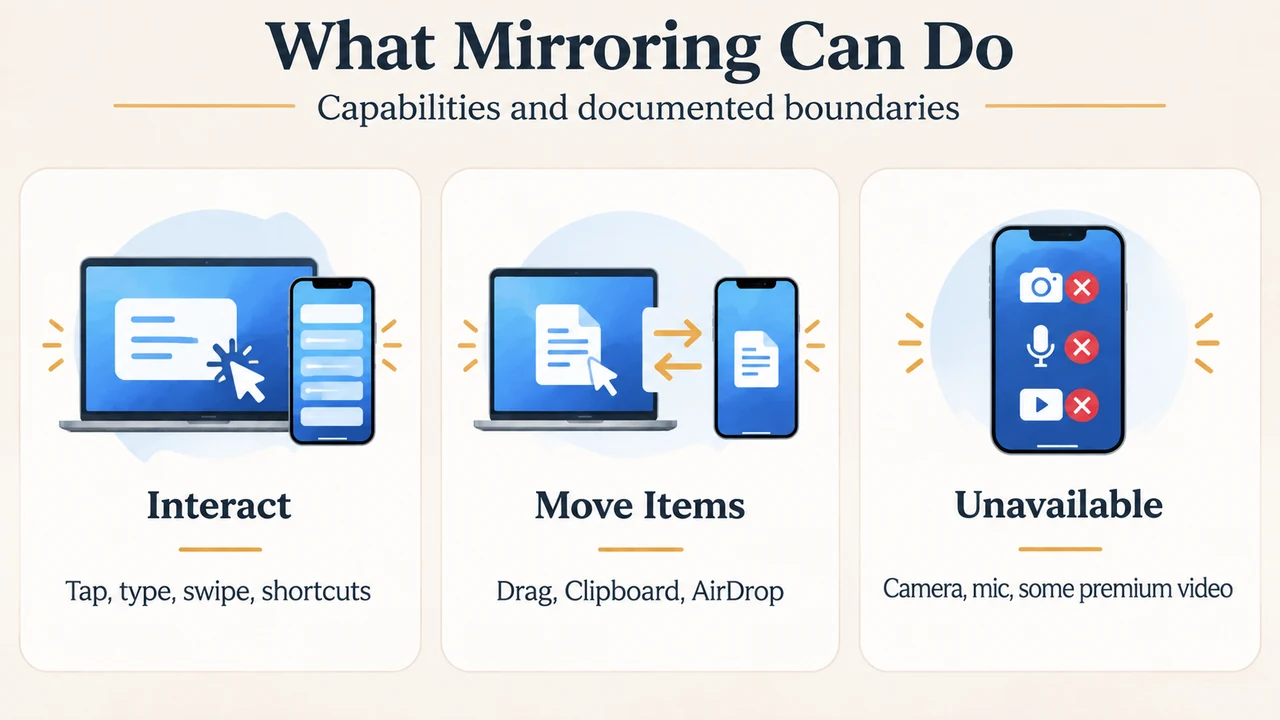
Text version of the diagrams
- Before Mirroring Can Connect: Compatible OS — macOS 15+, iOS 18+; Shared Account — Same Apple Account, 2FA; Wireless Nearby — Wi-Fi, Bluetooth, locked iPhone
- What Mirroring Can Do: Interact — Tap, type, swipe, shortcuts; Move Items — Drag, Clipboard, AirDrop; Unavailable — Camera, mic, some premium video
Research Methodology and Limitations
This explainer was prepared strictly from the supplied public vendor documentation published by Apple (support.apple.com/en-us/120421, published September 14, 2026). No competing third-party coverage was accessible or evaluated. This article does not report on independent hands-on testing, laboratory benchmarks, performance measurements, or unverified scenarios beyond the visible vendor-documented specifications.