Calling a business often involves waiting on hold. On supported Google Pixel phones, Call Assist includes a feature named Hold for Me that can wait on hold for you and notify you when a support representative is ready to speak with you. Understanding its requirements, device settings, and documented limitations ensures you know when and how to use it.
How Hold for Me Operates
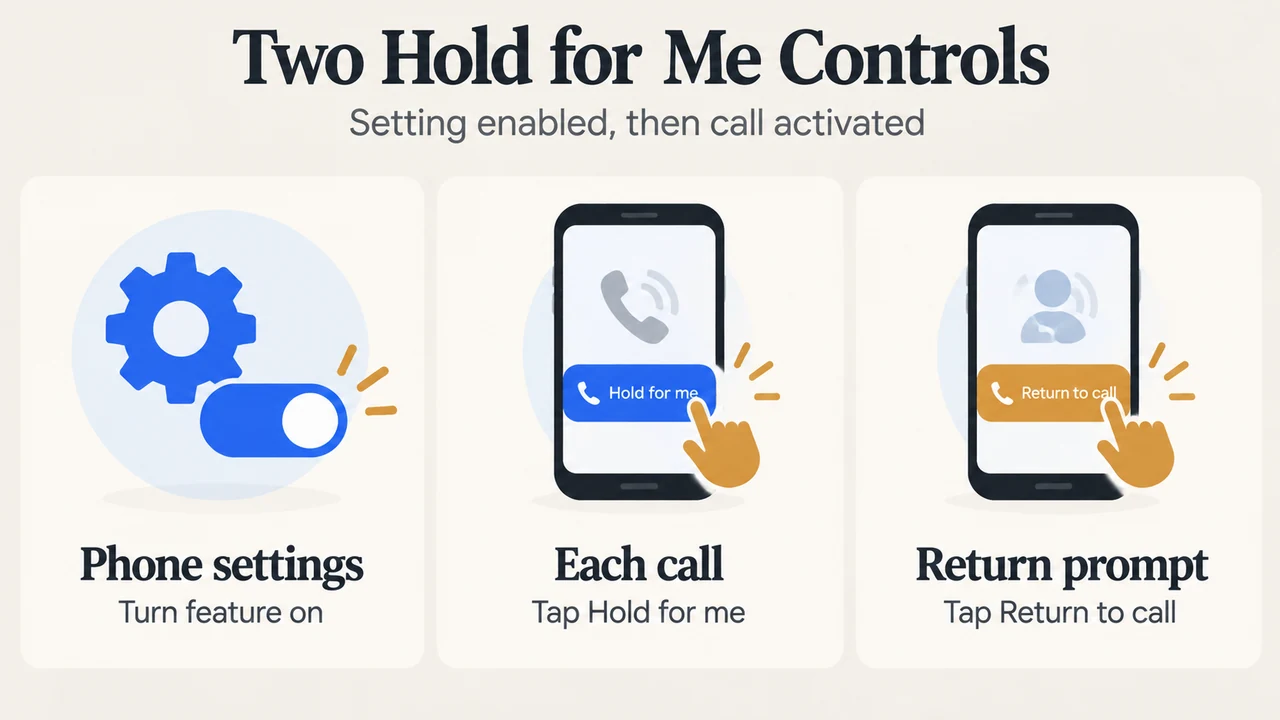
Hold for Me is designed for calls placed to businesses. Once the feature is enabled in your Phone app settings, you must also turn on Hold for Me during each qualifying call to let Call Assist wait on hold for you.
When you are placed on hold during a call to a business, tap Hold for me and then Start. While you are on hold, your screen displays a card that says “Don’t hang up.” When the support representative is ready to speak with you, a prompt displays “Someone’s waiting to talk to you.” You then tap Return to call to resume speaking.
Hardware, Software, and Regional Requirements
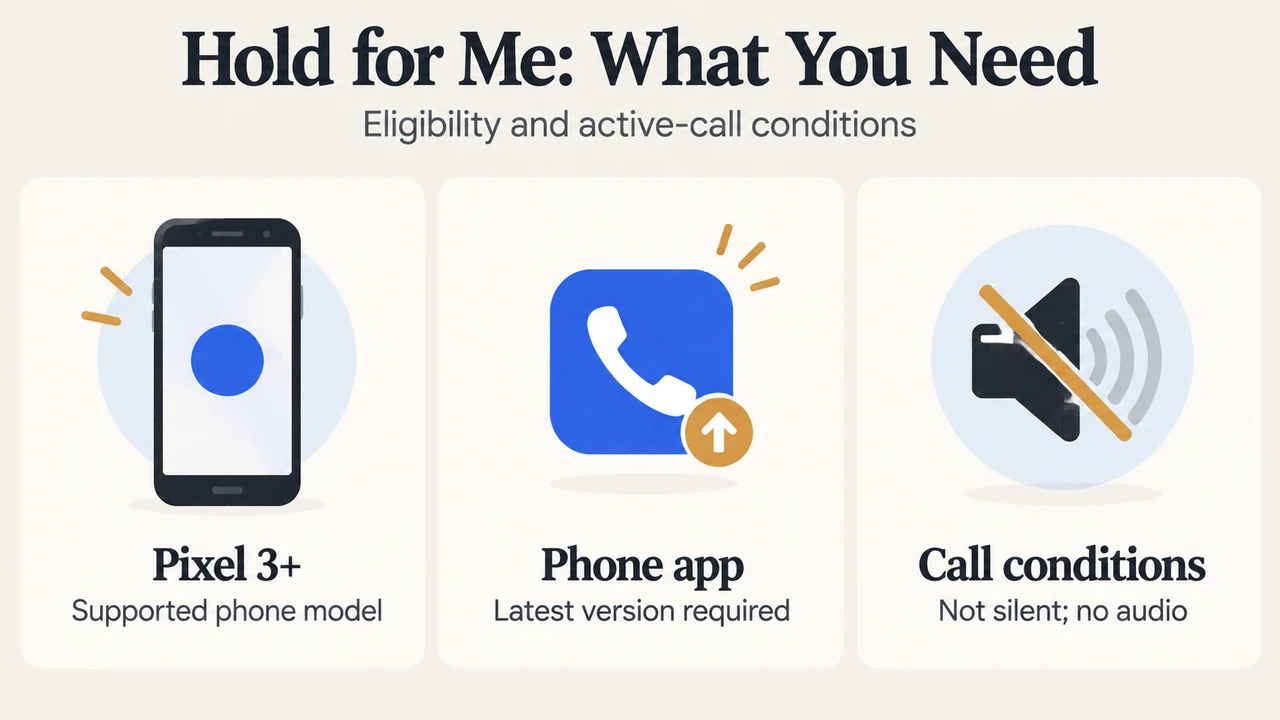
According to official Google Pixel documentation, Hold for Me requires specific devices, software, and regional support:
- Hardware: Pixel 3 and newer models.
- Software: The latest version of the Phone app.
- Country and language availability: Japanese in Japan; English in Australia, Canada, Ireland, the United Kingdom, and the United States.
Device and Audio Prerequisites
To use Hold for Me properly during a call, you must meet two sound settings:
- Sound mode: Take your phone off silent or vibrate only.
- Audio playback: You cannot play music or other audio on your phone while Hold for Me is active.
Documented Limitations and Data Sharing
Google outlines specific limitations and optional feedback mechanisms for Hold for Me:
- On-hold detection limits: Hold for Me may not detect every on-hold scenario.
- Representative return limits: Hold for Me may not detect when the representative returns to the call in every situation.
- Sharing call data: After a call, you can choose to share your audio and transcript to help improve Hold for Me. Submitting this data cannot be undone. To share feedback without including your email address, you can select “Google user” next to the “From” field on the Send Feedback screen.
Text version of the diagrams
- Hold for Me: What You Need: Pixel 3+ — Supported phone model; Phone app — Latest version required; Call conditions — Not silent; no audio
- Two Hold for Me Controls: Phone settings — Turn feature on; Each call — Tap Hold for me; Return prompt — Tap Return to call
Research Method and Limitations
This article was prepared strictly from the supplied public source excerpt from Google Pixel Phone Help (Use Hold for Me). Material limits include the absence of third-party comparative coverage and reliance solely on official user-facing support documentation without secondary test benchmarks or internal implementation details.