Audio Return Channel (ARC) and Enhanced Audio Return Channel (eARC) send sound from a television to an external audio system over a single HDMI connection. The HDMI Licensing Administrator documents eARC as a feature of HDMI 2.2 that advances beyond ARC, simplifying connectivity and enabling high-quality audio transmission to an audio/video receiver (AVR) or soundbar.
HDMI 2.2 eARC Features and Supported Audio Formats
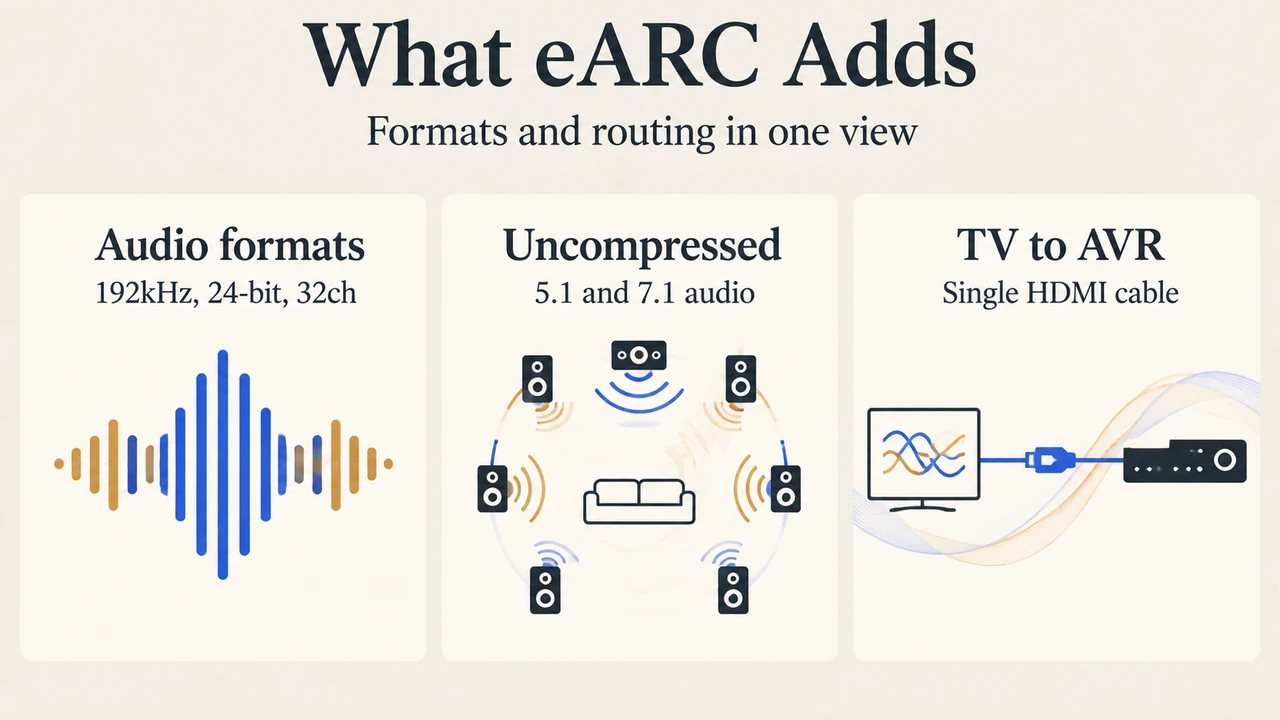
According to HDMI Licensing Administrator documentation, HDMI 2.2 features eARC as an advancement over the previous Audio Return Channel (ARC). eARC simplifies connectivity and provides greater ease of use for multiple components discovery and audio optimization. It routes audio that originates from cable, satellite, streaming, or source devices through a single HDMI cable to an AVR or soundbar, ensuring the original audio can be experienced.
Documented format support for eARC includes:
- High-bitrate audio formats up to 192kHz sample rates and 24-bit resolution.
- Uncompressed 5.1 and 7.1 surround sound.
- Up to 32 channels of uncompressed audio.
- DTS-HD Master Audio, DTS:X, Dolby TrueHD, and Dolby Atmos.
Setup Workflow for Apple TV 4K and HomePod Systems
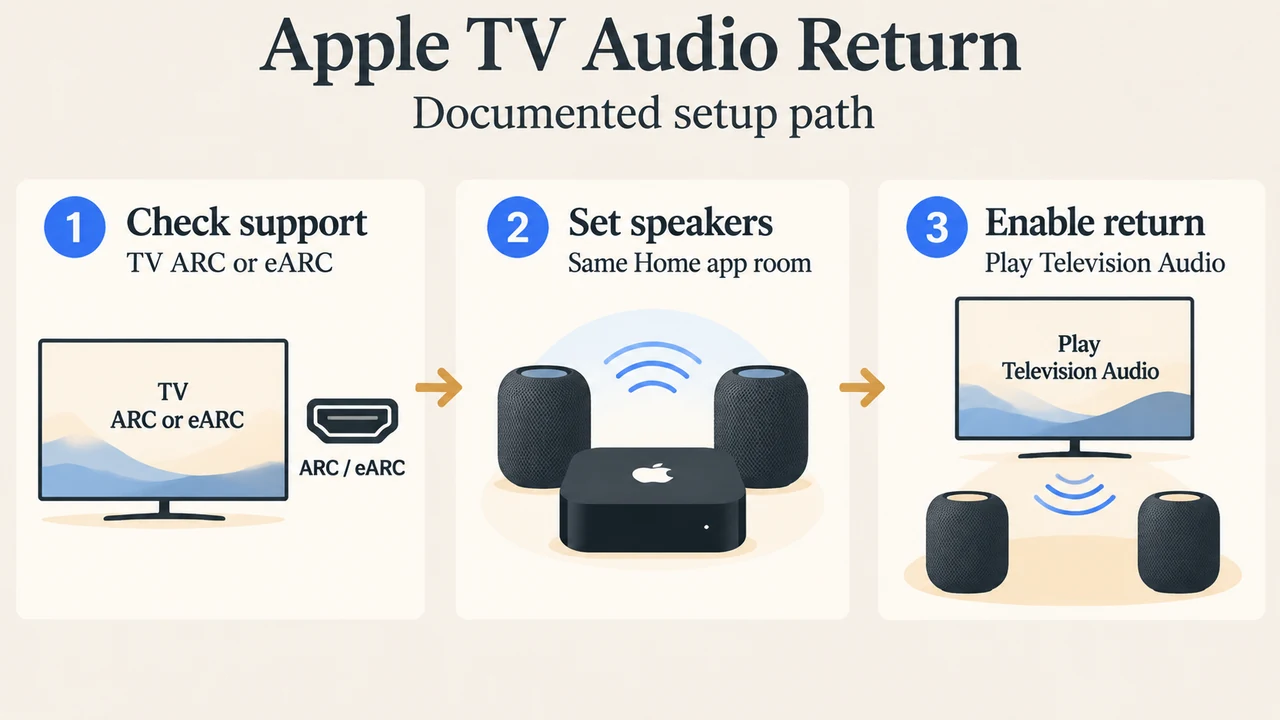
Apple documentation outlines a concrete ARC and eARC setup workflow for routing television audio to HomePod or HomePod mini speakers using an Apple TV 4K (2nd generation or later):
- Hardware Prerequisites: An Apple TV 4K (2nd generation or later), a single HomePod or HomePod mini speaker (or a stereo pair), and a television that supports HDMI ARC or eARC. Verify compatibility by locating an ARC label next to the television’s HDMI port or checking with the television manufacturer.
- Speaker Configuration: Configure the HomePod or HomePod mini speakers as the default speaker for the Apple TV. Ensure both devices are added to the same room in the Home app.
- Output Selection: On Apple TV, navigate to Settings > Video and Audio > Audio Output. Confirm the room containing the HomePod or HomePod mini is selected under Default Audio Output.
- Enabling Audio Return: Under Audio Return Channel, select Play Television Audio. The interface confirms activation by displaying On (ARC) or On (eARC).
- Display Settings and Troubleshooting: If audio does not route, turn on ARC, eARC, or HDMI-CEC in the television’s settings menu per manufacturer instructions. Disconnect the HDMI cables from both the television and Apple TV, reconnect them, and test the connection again.
Research Methodology and Limitations
This explainer was prepared strictly from the provided public source excerpts: official HDMI Licensing Administrator specification documentation for HDMI 2.2 eARC, Apple Support documentation for Apple TV 4K ARC/eARC setup, and secondary coverage from What Hi-Fi. Secondary coverage notes eARC was implemented as part of the HDMI 2.1 specification in 2017, whereas the primary HDMI Licensing Administrator excerpt identifies eARC under HDMI 2.2. The secondary competitor excerpt is truncated and cannot substantiate comprehensive format comparisons across all standalone AV receivers or soundbars. No hardware testing was performed, and setup menus or codec support may vary across television manufacturers.
Text version of the diagrams
- What eARC Adds: Audio formats — 192kHz, 24-bit, 32ch; Uncompressed — 5.1 and 7.1 audio; TV to AVR — Single HDMI cable
- Apple TV Audio Return: Check support — TV ARC or eARC; Set speakers — Same Home app room; Enable return — Play Television Audio